Wednesday, March 11, 2015

Create a Distributed File System Namespace in Windows Server 2012 R2

Petri IT Knowledgebase Create a Distributed File System Namespace in Windows Server 2012 R2

WinServer2012 logo

In this Ask the Admin, I'm going to demystify the process of setting up a Distributed File System (DFS) namespace in Windows Server 2012 R2.

Sponsored

DFS namespaces provide users with a logical way to access files without needing to know their physical location. Sitting in front of your physical file servers, a DFS namespace is a hierarchy of UNC paths that don't reference the actual file servers, but transparently redirect users to the nearest copy of the data via NTFS shares. DFS can also help to mitigate some of the issues commonly associated with migrating or consolidating existing file servers, such as maintaining UNC paths during migration projects.

When used with DFS replication, IT can provide users access to local copies of their data in different geographical locations without needing to pull data across expensive wide-area networks. DFS replication is an optional feature, and in this article I want to concentrate only on the namespace aspect of the equation.

Distributed File System Concepts and Terminology

A DFS namespace can be created even if you only have one file server, and the file server itself can act as a namespace server, i.e. the server where DFS will be installed and the namespace configured. The folders that contain the data to be accessed are known as folder targets, and even when they are located on the namespace server, they must be shared because DFS doesn't differentiate between folder targets located on the namespace server or remote file servers.

When configuring a DFS namespace, you create a DFS root on a namespace server. This root must also exist as a shared folder. In Figure 1 below, you can see a DFS root (\\contoso\public) configured on a namespace server with folder targets (Tools and Training Guides) being directed to a series of remote file servers.

A Distributed File System (DFS) Namespace (Image Credit: Microsoft)

A Distributed File System (DFS) Namespace (Image Credit: Microsoft)

There's also a folder called Software. DFS folders are optional, existing purely to provide extra flexibility in organizing the namespace hierarchy. So for example, a user can access Tools using \\contoso\public\software\tools\ and will be transparently redirected to the London or New York server depending on their physical location. Similarly, \\contoso\public\Training Guides will direct users to the Training share on the New York server.

Sponsored

Create a DFS Namespace

For simplicity I'm going to create a DFS namespace called files in Windows Server 2012 R2. Theres only one file server (contososrv1) in my domain, and this will be where I install the DFS bits, and it will act as the namespace server. To configure and install the DFS namespace feature, log in to the file server with domain administrative privileges, open a PowerShell prompt and type the command below:

Install-WindowsFeature FS-DFS-Namespace

The file server currently has no shared folders, so I'm going to create three folders: sales, accounts, and production; and a folder for the namespace (DFS root), using the mkdir cmdlet. Note that you can use existing shared folders that are already populated with files.

$folders = ('C:\dfsroots\files','C:\shares\sales','C:\shares\accounts','C:\shares\production')   mkdir -path $folders

Once the folders have been created, they need to be shared. The code below shares each folder using the New-SMBShare cmdlet, giving Everyone full access.

$folders | ForEach-Object {$sharename = (Get-Item $_).name; New-SMBShare -Name $shareName -Path $_ -FullAccess Everyone}

Now that the necessary folders and shares are in place, I can create the DFS namespace using the New-DfsnRoot cmdlet. \\ad.contoso.com\files is the UNC path for accessing the namespace, and \\contososrv1\files is used to specify the DFS root namespace server and path. The –Type parameter can be set to one of three values:

  • Standalone for a namespace that's not integrated with Active Directory
  • DomainV1 for a Windows 2000 Server mode domain namespace
  • DomainV2 for a Windows Server 2008 mode domain namespace
Sponsored

For more information on the differences between standalone and domain-based namespaces, see Planning a DFS Architecture, Part 1 on the Petri IT Knowledgebase. Before selecting the DomainV2 mode, make sure that the forest-functional level is set to Windows Server 2003 or higher, the domain functional level is set to Windows Server 2008 or higher, and that all namespace servers are running Windows Server 2008 or later.

New-DfsnRoot -Path \\ad.contoso.com\files -TargetPath \\contososrv1\files -Type DomainV2

Creating a DFS namespace in Windows Server 2012 R2 (Image Credit: Russell Smith)

Creating a DFS namespace in Windows Server 2012 R2 (Image Credit: Russell Smith)

Finally, we need to add the folder targets to the namespace, i.e. sales, accounts, and production, which are separated from the DFS root in the shares folder. The code below adds each share to the files namespace:

$folders | Where-Object {$_ -like "*shares*"} | ForEach-Object {$name = (Get-Item $_).name; $DfsPath = ('\\ad.contoso.com\files\' + $name); $targetPath = ('\\contososrv1\' + $name);New-DfsnFolderTarget -Path $dfsPath -TargetPath $targetPath}

Now users can access the namespace in File Explorer from any domain-joined device using \\ad.contoso.com\files\, and the sales, accounts, and production folders can be populated with files.

The post Create a Distributed File System Namespace in Windows Server 2012 R2 appeared first on Petri.


http://feedproxy.google.com/~r/Petri/~3/4VMYZElo3q0/create-a-distributed-file-system-namespace-in-windows-server-2012-r2.htm

Sent with Reeder


Brief message sent from a mobile device

Thursday, February 12, 2015

The top 5 reasons why Google Hangouts never works

Geek Tech The top 5 reasons why Google Hangouts never works

Editor's note: To be fair to Google Hangouts, Skype has its problems, too. But it's Google Hangouts that PCWorld's editors have, for several years, tried and largely failed to use for staff meetings with remote users. Just when we think we've figured out all the kinks, something else goes awry. So we feel our readers' pain on this one, and that's why we asked videoconferencing expert Christopher Null how to cure five of its most notable headaches. Did we miss a Hangouts hangup that's making your life hellish? Let us know in the comments. 

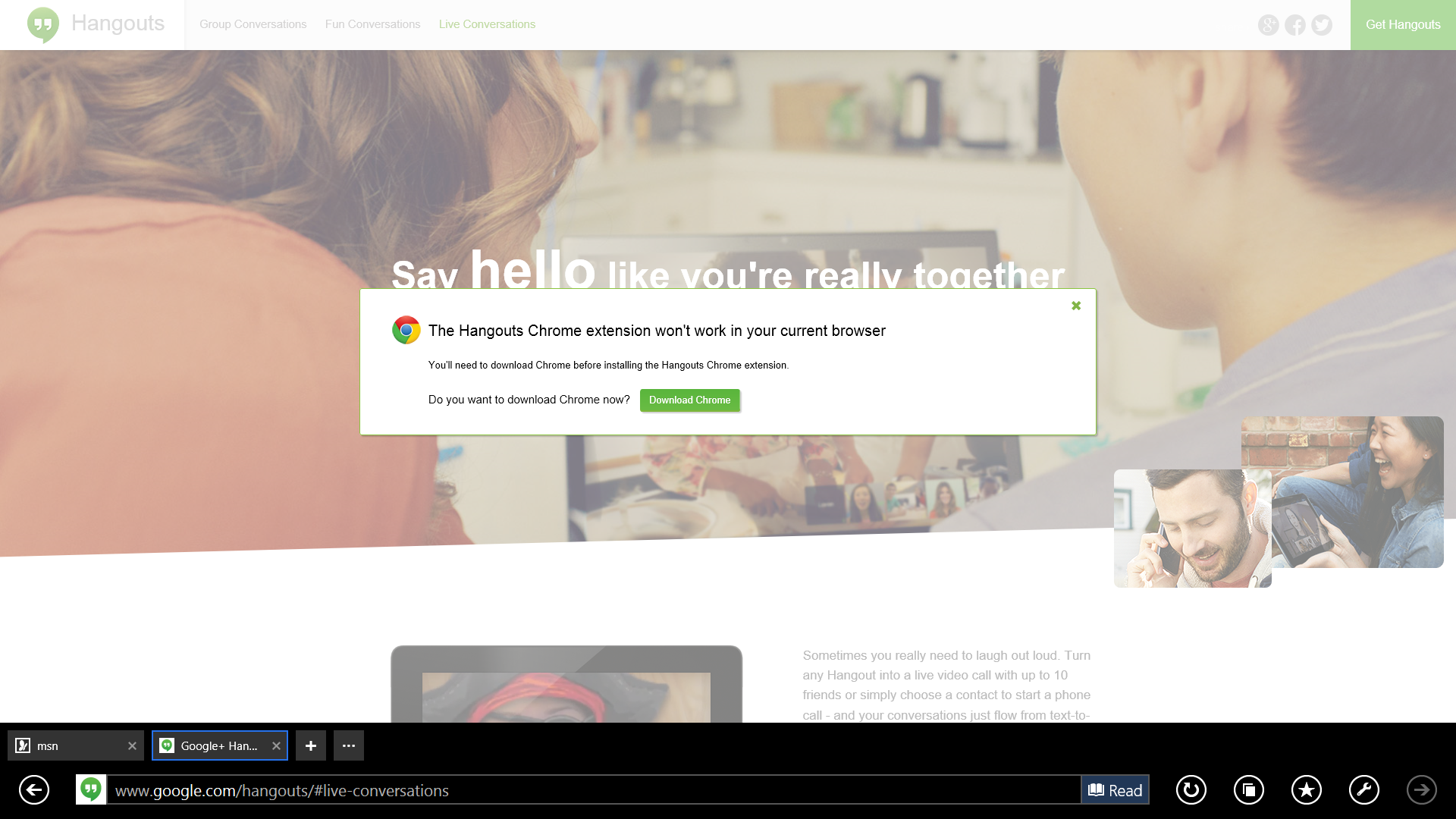
1. Hangouts doesn't work in Internet Explorer from the Windows 8 Start screen

google hangouts 1 Image: Christopher Null

Sorry, Metro fans! Launch your browser from the Windows desktop in order to use Chrome.

If you're using the Start screen to launch Internet Explorer, you may find that Hangouts simply doesn't work. That's because Hangouts requires a plug-in to operate on IE, and the full-screen, Metro-style version of IE doesn't allow any plug-ins at all. To work around this, you have a couple of choices. You can run IE in Desktop mode by launching it from the desktop instead of the Start screen, and then install Hangouts, or you can simply switch to another browser.

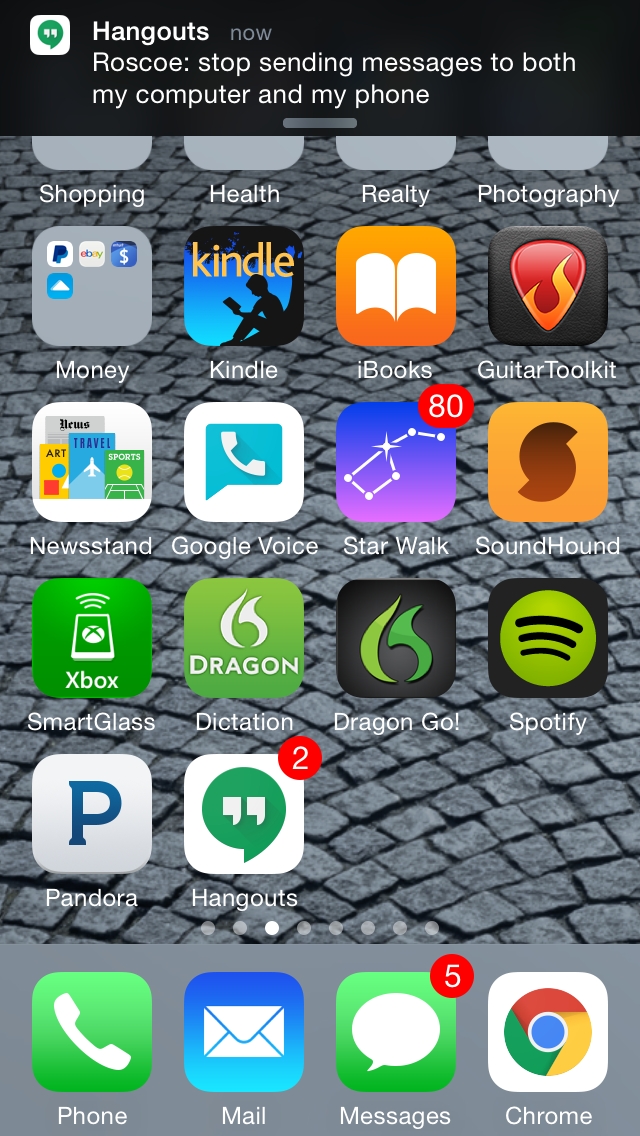
2. If you run Hangouts on multiple devices, Hangouts sends notifications to everything that's running, causing alert overload

google hangouts 2 Image: Christopher Null

Stem the flood of notifications by closing the Hangouts app or signing out.

If you have Hangouts open on your desktop and your phone simultaneously, notifications will pop up on both devices, even if you aren't actively engaged with one of them.

This is unfortunately a known issue with Hangouts. It's a pain for some users, while other users actually prefer it to work this way. 

If you're getting too many notifications, a few solutions are available. First, you can sign out of Hangouts on devices or browsers form which you don't want notifications, or close the app altogether.

On Android devices, you have a few more options. You can use Menu > Snooze notifications to suspend alerts on that device. Notifications can also be suspended indefinitely on a per-user basis by selecting the gear icon in a Hangout window and unchecking the Notifications box there.

3. Photos sent via Hangouts over MMS taken in portrait mode automatically rotate and turn into landscape photos

This is a specific issue related to Hangouts on certain Android phones when pictures are sent over MMS. Many users report that the problem is erratic and that clearing application data from the Android Applications Manager may help, at least some of the time.

The more reliable solution is not to use the camera within Hangouts to snap photos, but to take pictures separately, using the standard Android camera. When portrait photos are attached from your photo library, they seem to come through with the proper rotation intact.

4. Video calls don't work

While there are many potential reasons that Hangouts won't initiate a video call, here are a few of the most common troubleshooting tips.

First, the Chrome browser doesn't require a plug-in for Hangouts to work… unless your company uses Google Apps, in which case you will still have to install the Hangouts plug-in to make video calls. It's also a good idea to install the Hangouts Chrome app, which adds Hangouts to the Chrome App Launcher, where you can initiate a new video call.

Note that Hangouts does not support a handful of webcams, microphones, and audio devices. Presuming this is not your issue, make sure the correct audio gear is selected within Hangout's settings menu. To find this menu, initiate a new video, then click the gear icon.Hangouts may work better if you select specific devices for each of the three options instead of "Default."

Finally, in general, restarting your browser and/or your computer is also a good cure-all for any video-related problem within Hangouts.

5. The Hangouts Browser plug-in won't install (or disappears)

Can't install the Hangouts plug-in? First, make sure you aren't running 64-bit Internet Explorer, as the plug-in is not supported on this browser. If you're using Chrome, check chrome://plugins/ to see if the Google Talk plug-in is installed and enabled. (The name is a remnant of Hangouts' prior incarnation.)

You can also try uninstalling this plug-in (instructions can be found here) and reinstalling it. Remember that the Hangouts app is different from the Hangouts plug-in. (You don't need the former, but all browsers except Chrome require the latter.) If the Hangouts app has vanished from Chrome, simply re-enable it by re-downloading it from the Chrome Web Store.


http://www.pcworld.com/article/2883313/the-top-5-reasons-why-google-hangouts-never-works.html#tk.rss_all

Sent with Reeder


Brief message sent from a mobile device

Friday, February 6, 2015

Small firms wrestle with IT security

BBCTech Small firms wrestle with IT security

Man in waves
The tidal wave of security threats is almost overwhelming for almost every business

Keeping cyber thieves at bay is hard. They are busy, well-motivated and well-financed.

Just one example serves to show just how prolific they are. Every day, come rain or shine, they crank out about 250,000 novel variants of viruses.

Their vigour has helped them steal data from some really big companies, Target, Home Depot and eBay, in the last few months.

And, what is a problem for the big companies is even more acute for the smaller firms. They have an even tougher time keeping the bad guys out.

"They are exposed to many of the same attacks as much larger enterprises, yet they don't have the security expertise and resources available to those larger firms," said Maxim Weinstein, a security advisor at security firm Sophos.

While attacks on the eBays and Sonys of the world make the headlines there's no doubt that smaller firms are getting hit. And getting hit hard.

Figures from Sophos suggest about 30,000 websites a day are being compromised by cyber bad guys - most of those will be the public face of one SME or others.

Smartphones
The rise of the smartphone means few small businesses do not rely on technology to some extent

Becoming a victim of a hack or breach costs smaller firms between £65,000 and £115,000, according to the PWC survey of the worst data breaches among small firms. Those worst hit will suffer up to six breaches a year, PWC suggested, so the total cost could be even higher.

For a smaller firm finding that much cash to clean up after a breach could mean the difference between keeping trading and going bust.

This lack of focus on cyber security is understandable, said Mr Weinstein, as most small and medium-sized enterprises (SMEs) spent most of their time on core commercial activity such as keeping customers happy, seeking out new clients and engaging in all the basic day-to-day admin needed to keep their enterprise afloat.

Worrying about computer security comes a long down their To Do lists, he said.

Cyber commerce

But they do need to worry because the nature of commerce in the 21st century means that there are relatively few SMEs that do not make heavy use of technology, said Stephen Harrison, lead technologist at IT services firm Exponential-e.

Ruined fort
A fortress-style security stance is no longer possible, say experts

"You do see a knowledge gap," he said "in that you have these smaller companies that are smaller in terms of people and revenue but they are not smaller in terms of the IT they use."

Ecommerce, websites, apps, smartphones, tablets, social media and cloud services were all now standard ways of doing business in the 21st century, he said.

And, he added, there were some SMEs that were based entirely around technology but that did not make them experts in how to keep their digital business secure.

"There are some businesses that are much more than just users of technology," he said. "They have huge computing requirements as well as massive storage and bandwidth requirements - far more than their head count would suggest."

Either way, he said, everyone is a target and they all need to look externally to security firms for help.

"In the same way they don't run your own bank or accountancy firm they shouldn't run their own security operation," he said adding that SMEs often need help to understand the sheer range of threats arrayed against them.

Everyone is familiar with attempts to penetrate internal networks to steal payment information or customer data records but may be less knowledgeable about invoice fraud, ransomware, malvertising, or even attacks that "scrape" websites with automated tools to steal all the information about prices and products they contain.

Cash question

And that was where they hit their first problem, he said. How much do they spend? Estimates vary on how much SMEs spend on IT security.

The most recent government figures published 18 months ago suggest SMEs with 100 or more employees spend about £10,000 per year. The smallest small firms, with less than 20 staff, spend about £200. Other estimates put the spend at about £30 per employee.

Mr Weinstein from Sophos said SMEs should start with the basics.

This includes anti-virus software, firewalls, spam filters on email gateways and keeping devices up to date. This, he said, would defeat the majority of the low level threats that those busy cyber thieves are churning out.

Government advice on how SMEs can be safer revolves around a 10 steps programme that emphasises basic, good practice. It's big on those simple steps such as keeping software up to date and applying the widely used software tools that can spot and stop the most prolific threats.

Cash next to keyboard
Small firms have to spend their money wisely to be as secure as possible

But it also stresses that smaller firms understand more about how they use data and how it flows around their organisation.

This is important, said Greg Hanson from services firm Informatica, because security is no longer about setting up a fortress around your systems, servers and staff to keep the bad guys out. Now, he said, the way data flows between SMEs, their supply chains and customers has made it impossible to maintain the fortress-like security stance.

Having a good sense of where data goes and who uses it can help limit the damage if it goes astray, he said.

"There's a proliferation of data flowing through organisations that really needs to be controlled better," he said.

Having control of that data, knowing its value and where it is going, can help a company guard against it leaking out accidentally and maliciously. For instance, having that control might help a firm spot that a server was accidentally exposed to the net and private information was viewable by anyone.

It can also help SMEs keep an eye on their suppliers and partners to ensure that data is handled appropriately.

And finally, said Mr Harrison from Exponential-e, firms need to put in place a plan for what happens when a breach or security incident does occur.

"It's not a question of if something bad will happen," he said. "It will, but it's all about what they do about it."


http://www.bbc.co.uk/news/technology-31039137#sa-ns_mchannel=rss&ns_source=PublicRSS20-sa

Sent with Reeder


Brief message sent from a mobile device

Friday, January 30, 2015

Industry voice: Seven cyber-security risks your business should be aware of in 2015

TechRadar: All latest feeds Industry voice: Seven cyber-security risks your business should be aware of in 2015

With Sony being the latest major victim of hacking, large organisations are witnessing yet again how data breaches cause serious damage to the tune of millions. The prevalence of hacking in the media begs the question: what's in store for 2015?

Against a background of more frequent and dangerous XSS attacks, third-party code and plugins remaining the Achilles heel of web applications, and growing chained attacks, organisations will be looking to new ways to protect their online properties.

Unfortunately, it's pretty difficult to make information security predictions, and even more difficult to verify them afterwards – we can only judge the effectiveness of information security by the number of public security incidents, as the majority of data breaches remain undetected.

However, in this article we're going to make some web security predictions based on common sense profitability (profit/cost ratio) for hackers…

1. Vulnerable web applications will remain the easiest way to compromise companies

When almost any company has one or even several vulnerable web applications, hackers will not bother to launch complex and expensive APT attacks with zero-day exploits. Companies continue to seriously underestimate the risks related to their web applications and website. A tiny vulnerability, such as XSS, can lead to the compromise of the entire local network, emails and databases of a company.

2. XSS will become a more frequent and dangerous vector of attacks

It's very difficult to detect high or critical risk vulnerabilities in well-known web products (e.g. Joomla, WordPress, SharePoint, etc). However, low and medium risk vulnerabilities, such as XSS, will still regularly appear. Sophisticated exploitation of an XSS can give the same outcomes as an SQL injection vulnerability, therefore hackers will rely on XSS attacks more and more to achieve their goals.

3. Third-party code and plugins will remain the Achilles heel of web applications

While the core code of well-known CMS systems and other web products are pretty safe today, third-party code such as various plugins or extensions remain vulnerable even to high risk vulnerabilities. People tend to forget that one outdated plugin or third-party website voting script endangers the entire web application. Obviously hackers will not miss such opportunities.

4. Chained attacks and attacks via third-party websites will grow

Today it's pretty difficult to find a critical vulnerability on a well-known website. It's much quicker and thus cheaper for hackers to find several medium risk vulnerabilities and use a combination of these to get complete access to the website.

Another trend is to attack a reputable website that the victim regularly visits. For example, when chasing for a C-level executive, hackers may compromise several high-profile financial websites or newspapers, and insert an exploit pack that will be activated only for a specific IP, user-agent and authentication cookie combination belonging to the victim. Such attacks are very difficult to detect, as only the victim can notice the attack.

5. Weak passwords and password re-use will remain a very serious problem

Many people still use the same or similar passwords for all their accounts. Hackers cannot miss such opportunities and actively exploit this human weakness. The first step of attack is to identify all websites or blogs where the victim is registered or has an account. The second step is to select the weakest website from the list and to compromise it. Password encryption techniques commonly used in web applications today are far from being resistant, and a password in plaintext can be obtained pretty quickly.

Even if the victim uses a very strong password and it's being properly encrypted in the database. hackers will just Trojan the web application to intercept the password in plaintext during login. The last step is to try the password for all the victim's accounts and resources.

6. Application logic errors will become more frequent and critical

Examples with AliExpress and Delta Airlines highlight the impact of application logic vulnerabilities that are almost undetectable by automated solutions. Web developers have become aware about XSS and SQL injections flaws and code much better than before, however they forget about application logic vulnerabilities that may be even more dangerous than SQL injections or RCEs.

7. Automated security tools and solutions will not be efficient anymore

Web Application Firewalls, Web Vulnerability Scanners or Malware Detection services will not be efficient anymore if used separately or without human control. Both web vulnerabilities and web attacks are becoming more and more sophisticated and complex to detect, and human intervention is almost always necessary to properly detect all the vulnerabilities.

It's not enough anymore to patch 90% or even 99% of the vulnerabilities – hackers will detect the last vulnerability and use it to compromise the entire website. As a solution to the rise of new threats, High-Tech Bridge launched ImmuniWeb last year – a unique hybrid that efficiently combines automated security assessment with manual penetration testing.


http://rss.feedsportal.com/c/669/f/9809/s/42de7c7e/sc/4/l/0L0Stechradar0N0Cnews0Cworld0Eof0Etech0Cseven0Ecyber0Esecurity0Erisks0Eyour0Ebusiness0Eshould0Ebe0Eaware0Eof0Ein0E20A150E12827380Dsrc0Frss0Gattr0Fall/story01.htm

Sent with Reeder


Brief message sent from a mobile device

Tuesday, January 20, 2015

Download of the day: CrystalDiskInfo

TechRadar: All latest feeds Download of the day: CrystalDiskInfo

Download of the day: CrystalDiskInfo

Get to the bottom of any problems ailing your computer with CrystalDiskInfo, which shows you exactly what's wrong in an easy to use interface.

Why you need it

If there's something wrong with your computer, it's not always obvious what the problem is. Even experienced PC users can be stumped by a faulty computer, which makes CrystalDiskInfo such a useful program.

Get it up and running and it displays the S.M.A.R.T. information of your PC – that stands for Self-Monitoring, Analysis and Reporting Technology, and it lets you see exactly what's ailing your computer.

CrystalDiskInfo breaks this down and makes it easy to know exactly whether a drive is too hot or whether your computer is in general good health or is about to lay down and die. Even better, this useful little app can automatically send you alerts if a problem arises, meaning you can quickly address the problem before any serious damage is caused.

Key features

  • Works on: PC
  • Versions: Free
  • Diagnose problems: Find out exactly what is ailing your computer and solve the problem fast
  • Monitor PC health: CrystalDiskInfo can send you alerts when things go wrong, especially useful if you need to monitor several systems at once

You'll also like


http://rss.feedsportal.com/c/669/f/9809/s/42843139/sc/4/l/0L0Stechradar0N0Cus0Cnews0Csoftware0Cdownload0Eof0Ethe0Eday0Ecrystaldiskinfo0E1280A30A70Dsrc0Frss0Gattr0Fall/story01.htm

Sent with Reeder


Brief message sent from a mobile device

Friday, January 9, 2015

Download of the Day: Easy YouTube Video Downloader

TechRadar: All latest feeds Download of the Day: Easy YouTube Video Downloader

Download of the Day: Easy YouTube Video Downloader

Simple to use and quick to install, Easy YouTube Video Downloader enables you to grab your favourite videos from YouTube.

Why you need it

We all have our favourite online videos, but downloading them to our devices or viewing them offline can be a complicated process. Thankfully there's a quick and simple way to download YouTube videos to your computer: the suitably-named Easy YouTube Video Downloader extension for Firefox.

After installing the extension, you'll see a new bar directly below the YouTube video. This presents you with a few simple options for downloading the video in question: choose quality (Normal, 720p or 1080p) and format (FLV, 3GP, MP4 or just the MP3 audio) and you're good to go.

So that means whether you want to watch a video on a long journey or strip out the audio in order to listen to it as a podcast, you're able to do so with this little Firefox extension.

Key features

  • Works on: PC, Mac, Linux
  • Versions: Free
  • Download: Easy YouTube Video Downloader lets you grab any video featured on the world's most popular video site, and you can download audio, too
  • Convert: Download the file in a number of different formats and qualities

You'll also like


http://rss.feedsportal.com/c/669/f/9809/s/421fdafe/sc/4/l/0L0Stechradar0N0Cus0Cnews0Csoftware0Cdownload0Eof0Ethe0Eday0Eeasy0Eyoutube0Evideo0Edownloader0E12794690Dsrc0Frss0Gattr0Fall/story01.htm

Sent with Reeder


Aron

Brief message sent from a handheld device.

Wednesday, January 7, 2015

Should you rent or buy a home in retirement?

Consumer Reports Should you rent or buy a home in retirement?

Should you rent or buy a home in retirement?

Deciding whether to rent or buy a home was never an easy question for my parents. Now age 83 and 84, they always treated homeownership as sacrosanct. Not only was owning their home a symbol of success, but it provided a haven that offered security and comfort. 

But when my parents recently left the home they owned in New Jersey for 43 years to move near my sister in California, they opted to rent. And after decades of do-it-and-pay-for-it-yourself, they are finding—surprise!—that it's nice to have someone else handle the landscaping and call in the plumber.

My husband and I might do the same in retirement. And as I'm learning, though some factors in the decision to rent or buy are the same at any age, others take on more significance in retirement.

Check out Consumer Reports' advice on smart real estate moves, and find out how to judge Top 10 lists for relocating in retirement.

A first consideration is how long you expect to live in your new residence. Just because you're retired doesn't mean you'll stay in your new digs. Down the road, you might want something smaller or more accommodating to a disability.

But the shorter the stay, the less financially attractive owning a home in retirement becomes. For one, you'll have to spread points and other closing costs over less time. If you finance, you're likely to have little new equity to show because you'll pay so much in interest in a mortgage's first years.

For that reason, if you are retired, you should rent your home if you don't expect to stay more than three or four years, says Josh Fatoullah, founder and CEO of JR Wealth Advisors in Great Neck, N.Y. "The last thing we would want is where you've paid the closing costs and then you're just not happy," he says.

Assuming you can determine the minimum time you'll stay in a new home, you can then compare the costs of homeownership and renting. Early retiree Darrow Kirkpatrick provides an analysis in his insightful blog Can I Retire Yet?. He took a hypothetical $300,000 home in his Tennessee town and added up its expected maintenance and repair costs, property taxes, and homeowners insurance, then figured in the opportunity cost—what his money could earn in stocks and bonds if it wasn't tied up in home equity.

Kirkpatrick's estimated, effective cost of homeownership over a 10-year period was $834 per month for every $100,000 of a home's value. In other words, a $300,000 home would generate $834 x 3, or about $2,500 per month in ownership costs. If a retiree could find a comparable property to rent for less than $2,500 per month, he should rent.

Online mortgage calculators can personalize calculations like that for you. The New York Times' sophisticated rent-vs.-buy tool is among the better ones I've seen.

The Times' tool and Kirkpatrick's calculations also consider the impact of buying a home outright vs. getting a mortgage. If you can stomach holding on to debt late in life, you might benefit from getting a mortgage and investing in stocks, bonds, and other holdings rather than paying for your home outright. The National Association of Realtors says that since 1968 (when it began tracking real-estate inflation) through 2013, single-family home prices have increased 5.3 percent annually on average. In that same period, 10-year Treasury bonds returned an average 7.4 percent annually (neither figure accounts for inflation).

Of course, future stock, bond, and real-estate markets won't necessarily act as they have historically. Point is, the opportunity cost could be greater if you tie up money in a home rather than taking out a mortgage.

I can't speak of mortgages without mentioning the federal tax deduction on mortgage interest. It's often held up to justify owning. But it may be worth less if your retirement income puts you in a lower tax bracket than when you were working. (Income from required minimum distributions also can raise you to a higher tax bracket.)

Other, non-monetary factors may dominate your decision. If your pug requires a backyard lair or you'll feel lost without a home-improvement project, you'll want to buy—or find an owner who is OK with Roxy's ranging or welcomes your tinkering.

As for my mother, she's gardening at her rental home, just as she did in her New Jersey yard. This spring she expects to greet blooms of chocolate cosmos, hyacinths, tulips, bluebells, and daffodils. As a tribute to her new locale, she's adding California poppies.

They add a homey touch. 

—Tobie Stanger

This article also appeared in the January 2015 issue of Consumer Reports Money Adviser.

Consumer Reports has no relationship with any advertisers on this website. Copyright © 2006-2015 Consumers Union of U.S.

Subscribe now!
Subscribe to ConsumerReports.org for expert Ratings, buying advice and reliability on hundreds of products.
Update your feed preferences

                submit to reddit    


http://simplefeed.consumerreports.org/l?s=100003s276p6jt92ia3&r=feedly&he=687474702533412532462532467777772e636f6e73756d65727265706f7274732e6f726725324663726f2532466e65777325324632303135253246303125324673686f756c642d796f752d72656e742d6f722d6275792d612d686f6d652d696e2d7265746972656d656e742e68746d2533464558544b455925334449373252534841&i=727373696e3a687474703a2f2f7777772e636f6e73756d65727265706f7274732e6f72672f63726f2f6e6577732f323031352f30312f73686f756c642d796f752d72656e742d6f722d6275792d612d686f6d652d696e2d7265746972656d656e742e68746d

Sent with Reeder


Brief message sent from a mobile device

Thursday, January 1, 2015

The best Netflix tools: Use these 10 tricks and tips to get the most out of your subscription

Geek Tech The best Netflix tools: Use these 10 tricks and tips to get the most out of your subscription

Netflix's simplistic interface may be well-intentioned, but sometimes you need more powerful tools to find the best streaming movies and TV shows.

Now that Netflix has shuttered its public API, the number of useful apps and sites for sorting through Netflix video has thinned. But there are still several tried-and-true methods for finding the good stuff, along with a few tools and settings from Netflix that everyone should know about. Here are 10 tips for making the most of a Netflix streaming subscription:

Use better browsing tools

Netflix's catalog of movies and shows is massive, but you might only scratch the surface with its basic apps and website. When you're really trying to scratch a particular itch, use AllFlicks.net, which lets you search within specific genres, filter movies and TV shows, narrow down a date range, and sort by rating. (InstantWatcher has a similar tool without as many sorting options, but it does include a handy synopsis view.)

If you just want a quick recommendation, try WhatIsOnNetflix.com, It lists a handful of top-ranked movies from IMDB, Rotten Tomatoes, and Metacritic, and its "Random Pick" tool is especially helpful for the indecisive.

Watch new and soon-to-be departed releases

Netflix's "New Releases" section rarely gives you the full story when you're trying to find fresh movies and TV shows. For that, turn to InstantWatcher's "Newly Available on Instant" section, which gives a complete list of recent arrivals. It also lets you filter just movies or just TV, and it has sorting options for rating and original release date.

You might also want to keep track of which movies and shows will be leaving Netflix. Now Streaming has weekly and monthly roundups, so you can watch the good stuff before it's gone.

Use extensions to take command

In theory, Netflix's built-in star rating system should work really well, because it's personalized to your interests. But sometimes you just want to watch a trailer and see what critics think before pushing play. The Netflix Enhancer extension for Chrome can help, showing IMDB ratings, Rotten Tomatoes scores, and a trailer button when you hover your cursor over a movie.

To gain even more control, install Lifehacker's Flix Plus extension, which adds a heap of customization options including a "Darker Netflix" theme and the ability to hide spoilers.

Get powerful sorting options for your queue

Sorting through the "My List" section of Netflix's site can become unwieldy if you've built up a massive backlog. Fortunately, a free script called Netflix Queue Sorter lets you get a handle on your queue in Chrome, Firefox, Opera, or Safari. Once installed, you can sort your queue by star rating, genre, title, and more. You can also shuffle the order if you're feeling lucky. Just follow the instructions on Github for your browser of choice. (Note: You must turn on Manual Ordering in Netflix settings for the script to run.)

Figure out what's on with your phone

Most Netflix power tools live on the Web, but that makes them cumbersome if you don't have a home-theater or easy access to a laptop. For powerful Netflix searches on your phone, check out Upflix for iOS or Android. The free app lets you sort movies and shows according to their ratings on Netflix, IMDB, TMDB, Rotten Tomatoes, or Flixster. You can also browse through dozens of genres and use a "roulette" feature to get spontaneous recommendations. When you're ready to watch, you can even jump straight into the Netflix app to begin playback.

Search beyond Netflix

Searching on Netflix can be a waste of time if you're looking for something specific that the service might not even have. Instead, broaden your search with WhereToWatch, a video search engine that includes several legal online sources, including Amazon, iTunes, and Hulu. You can search by title, actor or director, and while it has a few holes, it'll save you the disappointment of coming up empty on Netflix.

Manage your profile

If you're ever felt let down by Netflix's recommendations, it might be because you haven't fed it enough data. Start by visiting the Edit Profiles section of Netflix's Website, and make sure everyone in your family has their own profile. (Don't worry, it's free to have several profiles tied to a single account.) Now head to theYour Account section of Netflix's Website and click onTaste Preferences, where you can rate how much you care for various genres. You can also use the Ratings Wizard to give star ratings to the movies and shows you've already seen. It's a good way to ensure those banal direct-to-DVD horror movies are permanently banished from your menus.

Learn some keyboard shortcuts

Watching Netflix on a laptop isn't quite as comfy as kicking back with a TV and remote control, but using keyboard shortcuts are the next-best thing. Some of these controls will work on other video sites such as YouTube and Hulu, so they're worth remembering:

  • Enter or Space: Toggle pause/play
  • Left Arrow: Rewind
  • Right Arrow: Fast Forward
  • Up Arrow: Volume Up
  • Down Arrow: Volume Down
  • M: Mute
  • F11: Toggle Full Screen (Chrome only)

Tweak a few settings

For those who watch a lot of foreign fare, Netflix's Subtitle Preferences menu is worth a visit, as it'll let you change the color, size and font of all subtitles and captions. (It works on all devices except those running iOS, which havetheir own instructions. You should also check out the Playback Settings menu, which lets you manually adjust video quality—useful when you're on a limited data plan—and turn off auto-play of the next video in a series. And if you're perturbed by Netflix's auto-sorting of your "My List" queue, you can turn on Manual Ordering to arrange them by hand.

Minimize buffering

If Netflix keeps hitting you with the dreaded "buffering" icon, you may be able to sacrifice audio and video quality for smoother playback. While streaming, hold Ctrl-Shift-Alt and press "S" to bring up the bitrate menu. Select lower numbers for audio and video bitrate to increase your odds of smoother streaming, then click "Override." You can change things back to normal by bringing up the menu again and hitting "Reset."

Share your own tips

That's all the tips I have to share for now. Did I overlook any of your favorite strategies for squeezing maximum value from your Netflix subscription? Please share by posting them in the comments section, below.


http://www.pcworld.com/article/218797/netflix-power-tools.html#tk.rss_all

Sent with Reeder


Brief message sent from a mobile device

Wednesday, November 26, 2014

How to make the best cover images for your social media accounts

Macworld How to make the best cover images for your social media accounts

You can't always judge a book by its cover, but you can judge a social media profile by its cover image. In this column, you'll learn how to make your own cover images for Facebook, Twitter, Google+, and LinkedIn, including design ideas, correct sizes, and sage file format advice. This is your chance to get creative and let your personality shine—after all, an image is worth a thousand words!

Size Matters

The imagery you use for cover images among social media services doesn't have to be different, though each service wants slightly different pixel dimensions. While you can crop and reposition the image during the upload process, sizing it correctly ahead of time gives you more control and lets you plan for areas of the image that'll be covered by your profile picture or text overlay. Below are the currently recommended sizes for today's popular players (all sizes are in pixels), and while some services accept larger images, the sizes below work well on both desktop and mobile devices:

Facebook: Covers for personal or fan pages are 851x315. Your profile image is shown as overlay in the lower-left, with your name as a text overlay to its right. Facebook Groups have cover images of 801x250.

Twitter: Cover images are 1500x500. Your profile image is shown as overlay in the lower-left, with your name and bio appearing beneath it.

Google+: Cover images are 1080x608. Your profile image, name, and URL are shown to the left of your cover image, not as an overlay.

LinkedIn: LinkedIn's cover images are 1400x425, but they're currently for Premium (paid) accounts only. No overlays are shown atop the cover image.

coverimages 1

A good profile image features your face or logo in full frame (left). In a full-length body shot, your face is too small to see (right); however, if the image is big enough, you can use the service's zoom feature during the upload process to fix that.

Profile image sizes vary across services, too, though they're always fairly small. A good rule of thumb is to upload a portrait-style photo of yourself—or your company's logo if it's a business page—and then use the service's cropping feature to make your head, neck, and shoulders fill the frame.

Building the cover image

To make a great cover image, you need an application that lets you create a custom document size, and add more than one image to that document, as well as text. Such programs include TurboCollage ($5), Pixelmator ($30), Adobe Photoshop Elements ($100), Adobe Photoshop CC ($10/month with an Creative Cloud Photography subscription), and the like. (With enough skill you can do it in Aperture or Lightroom, but that's fodder for another story—it involves creating a custom paper size in the Print module, designing a new print template, and then using the identity plate and watermarking to add a logo and text.)

Perhaps the easiest program to use is Photoshop Elements 13; it sports a new Facebook Cover option in the Editor's Create menu that makes a perfectly sized cover (and profile image) from one or more images using a variety of templates.

coverimages 2

Both the couple's photo and the white text to its right are automatic overlays (top). To leave room for that stuff, set a guide in your image editor (bottom).

No matter which application you use, the first step is to create a new document at one of the sizes listed above, generally by choosing File > New and entering the correct dimensions and resolution (use 72ppi). Next, start importing imagery into your document and arrange the important bits so they're not covered by any overlays the service tacks on. To be safe, don't set any text inside the bottommost 145 pixels.

What to include

To make the best impression, use odd numbers of your very best images. Choose high-quality images that best reflect your personality or hobby. Use images you've shot yourself, purchased from a royalty-free stock image company, or those that are in the public domain or have generous usage rights (NASA's Visible Earth images, for example). But don't use images you've snatched from the Internet using a Google image search.

If it's a personal page, give your cover image extra personality by adding a favorite motto, such as "practice aloha" or "It's 5 o'clock somewhere!" Just keep it clean and keep it short. Remember, the whole world can see this, including current and future friends, family, mates, even bosses.

coverimages 3

Including URLs on business cover images makes them easier for visitors to find, shown here on a Facebook fan page (top) and Twitter (bottom).

If it's a business page, be sure to include your URL and tagline so it's highly visible. If you have a product for sale, include a picture of it to increase brand recognition.

Save it in the right file format

When you're finished, first save a master copy of your document in the software's native format so you can edit it again later. Next, use the software's File > Save As command to create a JPEG or PNG copy in that you'll upload to the service itself.

The JPEG format produces a smaller file size, though PNG produces a higher-quality image because no data is lost when it's compressed. So if your cover image includes a logo or text, use PNG–8. If it includes a large gradient—a smooth transition from one color to another, like in a big sky—use PNG–24, which supports more colors than PNG–8 (and therefore creates a larger file size). For anything else, use JPEG at the highest quality setting.

Facebook is notorious for compressing JPEGs even further during the upload process, so if your cover image looks blurry, try PNG–8 or PNG–24 instead.

coverimages 4

Here TurboCollage was used to create this collage (with the exact Facebook blue as a background color). To keep text crisp, save this cover image in PNG format.

Keep these tips in mind, and your social media cover images will look their best and send the right message. Until next time, may the creative force be with you all!

PhotoLesa.com founder Lesa Snider teaches the world to create better graphics. She's the author of the best-selling Photoshop: The Missing Manual books, coauthor of iPhoto: The Missing Manual, author of The Skinny Book ebook series, a founding creativeLIVE instructor, and regular columnist for Photoshop User and Photo Elements Techniques magazines.


http://www.macworld.com/article/2852602/how-to-make-the-best-cover-images-for-your-social-media-accounts.html#tk.rss_all

Sent with Reeder


Aron

Brief message sent from a handheld device.