Showing posts with label Network. Show all posts

Monday, January 14, 2013

4 ways to prepare for and fend off DDoS attacks

Geek Tech

Cyber attacks of all kinds are on the rise. It is a trend you ignore at your own peril. National Security Agency and U.S. cyber-command chief Keith Alexander said in July that Internet attacks of all sorts surged 44 percent in 2011 and are responsible for what he terms the "greatest transfer of wealth in history."

In a world where you can rent an already-hacked botnet for about $20to start your attack, and in a world where a criminal enterprise industry has developed to support amplifying attacks in progress, it is important to understand that these types of attacks are simply not going away. Are you ready for them? Are you considering the right points? Here are four strategies to help your organization prepare for and defend against Distributed Denial of Service (DDoS) events in the future.

1. Consider over-provisioning a service in advance

Most of us develop systems on strict budgets. There is a general resistance among financial types as well as information executives to not pay for unused capacity. This makes good sense in and of itself—why waste your dollars on capacity, either bandwidth or compute, that you are not using? Many companies scale their systems to match a predictable but legitimate peak, such as Black Friday, Cyber Monday or another annual peak load.

In a DDoS attack, however, your site or resource can experience loads many times greater than even your highest peak activity—on the order of 10 or 20 times, if not more. Mind you, I'm not suggesting you budget capacity to pay hackers to blast your network with packets. While you are specing bandwidth and compute resources, though, it makes sense to give yourself a healthy margin of error, even on top of your peak.

To read this article in full or to leave a comment, please click here

Sent with Reeder


Brief message sent from a mobile device

Thursday, April 26, 2012

Resetting a Fortinet

We recently purchased a used Fortinet FortiWifi from eBay to have as a backup router/firewall for our CDW acquired FortiWifi for a client.  The unit was pristine however it still had the previous owner's configuration so we needed to do a factory reset.  Most information on the web is not quite complete so I'll elaborate on my steps.


First, you will need a serial to console cable.  These are easy to come by and you'll also need a computer that has a serial connection (which is rapidly becoming hard to come by).  You can use something like a Keyspan USB to serial adapter or perhaps there's a USB to console cable.  Either way, I have an old Lenovo desktop with a serial connection so I used it.  However, post-XP, Windows no longer includes Hyperterminal so I downloaded Tera Term VT.


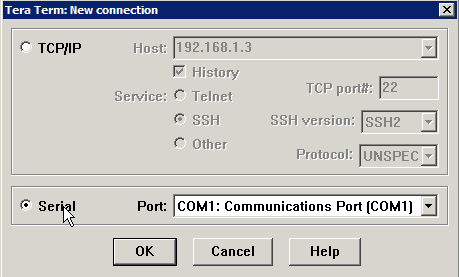
Connect the serial cable between your computer and the Fortinet product, then launch Tera Term.  In the New Connection window, be sure to select Serial and the appropriate port.
NewImage

 Click OK and then press Return until you see a login screen.
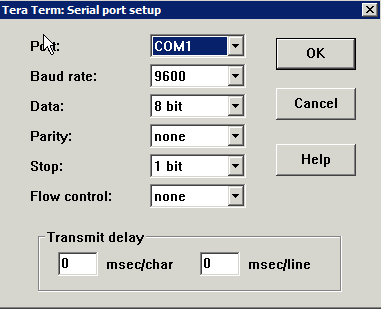
Check your terminal settings by clicking Setup/Serial Port.  It should be set to:
Baud rate:  9600
Data:  8 bit
Parity:  none
Stop:  1 bit
Flow control:  none
NewImage
NewImage


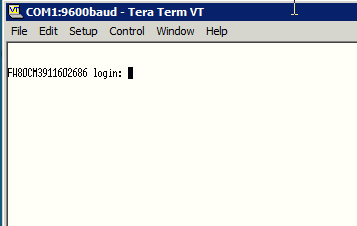
 If after pressing return 2 or 3 times and you don't see the login, check your settings on Tera Term to make sure that you're connected to the right port, make sure the Fortinet device is powered on, etc.  If all is correct, you'll see the login window.
Now, it's important to power cycle the Fortinet device.  I wasn't able to login after many attempts because I didn't reboot it, even though I was logging in with the correct credentials.  Leave Tera Term on though.


When rebooting you'll see the below in Tera Term


NewImage


Login with the user name:  maintainer
The password is bcpb[CAPITALIZEDSERIALNUMBER]


In my case, I logged in with password:  bcpbFW80CM9999999999 (actual serial number different)


Once logged in successfully, the command to restore to factory defaults is:


exec factoryreset


The unit will reboot and you can then access via a browser (http://192.168.1.99 and login with 'admin' and an empty password).


Alternatively, you can reset the admin password by issuing the following:


config system admin
edit admin
set password
next
end


And if all is done as above, you're in to your used router!

Wednesday, February 2, 2011

Open Source Network Tools

Came across this article that my guys really liked on ComputerWorld.  It's a bunch of highly useful network utilities that are open-source.

Friday, June 4, 2010

Introduction to the OSI Model

Good reading for those new to networking. One of the more succinct but useful explanations of the OSI model. Thanks, Petri!

Introduction to the OSI Model: "

The Open System Interconnection Reference Model (OSI) is a seven layer model that was developed as part of the effort to standardize networking that was started in the late 1970's as part of the Open Systems Interconnection (OSI) initiative.

This article will be a brief overview of the model itself and the tie in to the Cisco Certified Network Associate Routing & Switching exam (640-802 CCNA), as well as the Network+ exam.

Expert Network Troubleshooting & Analysis

Try Observer® from Network Instruments® and experience one of the most robust analyzers on the market.


Troubleshoot VoIP and other application performance issues, apply Expert Analysis, leverage NetFlow data, set triggers and alarms, and take advantage of trending and reporting features across multiple topologies.

Download the Free Observer Trial

OSI Model's place in the CCNA and Network+ exams

Both the 640-802 CCNA exam and the Network+ exam test for some of the common knowledge of the OSI Model.

For the CCNA 640-802 exam this information is tested as part of the 'Describe how a network works' domain as part of the following subtopics:

  • Use the OSI and TCP/IP models and their associated protocols to explain how data flows in a network
  • Describe the purpose and basic operation of the protocols in the OSI and TCP models
  • Select the components required to meet a network specification

Beyond these subtopics you'll need to have at least a general understanding of the model across some of the other exam topics as well but this is the primary area of focus.

For the Network+ exam most of this relates to subtopic  4.1 Explain the function of each layer of the OSI model.

For both certification exams you'll need to know where in the model certain protocols function as well as knowing at what layers hardware devices such as routers, switches, bridges, et cetera work. Additionally, you'll need to have a good understanding of how security of data is handled through the devices and what security features are offered to the data in transit and at which levels of the OSI model offer what types of security.

NOTES FROM THE FIELD - TrainSignal offers in depth training for both the Cisco CCNA 640-802 exam as well as CompTIA's Network+ exam

The Seven Layers of the OSI Model

In summary the four layers of the OSI model are broken as follows:

The Physical Layer defines the electrical and physical properties and the operating specifications for the devices and media in use. The main job of the Physical Layer is the physical 'connection' or attachment of given media and how it is configured (e.g. Token Ring cable, size of cable used, termination in place etc.). In some instances, there may be secondary responsibilities of this layer depending on the device for things such as flow control, modulation/demodulation and so forth. The protocol data unit in use at this level of the OSI model is referred to as a 'bit.'

The Data Link Layer provides the practical means to transfer data between network nodes as its main job is to transfer data between network nodes in a wide area network or between nodes on the same local area network segment/subnet. It has the secondary responsibility to detect and correct errors (as permissible) that may take place at the Physical Layer. The protocol data unit in use at this level of the OSI model is referred to as a 'frame.'

The Network Layer handles the forwarding and routing of data along logical paths between network connected nodes. In addition to routing and forwarding functions of this layer of the model is also performs addressing, error handling, quality of service control, congestion control and packet sequencing. The protocol data unit in use at this level of the OSI model is referred to as a 'packet.'

The Transport Layer is responsible for the reliable, end to end transfer, recovery and flow control of the segments between the nodes. The protocol data unit in use at this level of the OSI model is referred to as a 'segment.'

The Session Layer addresses the build up and tear down of the connection sessions between nodes on a network. The protocol data unit in use at this level (and all of the subsequent levels) of the OSI model is referred to simply as 'data.'

The Presentation Layer is responsible for taking the data from applications at the application layer and breaking it down for use on the session layer as well as the reverse. It also has the task of formatting the data so that it can be sent to other nodes.

The Application Layer handles the initial connection of a given application to the network. It is where applications and application type activities such as browsing the web, sending and receiving email and performing file transfers take place. There are applications that wholly reside at the level such as Telnet and FTP.

Protocol Use at each of the TCP/IP Model Layers

At each layer of the OSI Model there are associated protocols that are in use.

These are not fully comprehensive lists but are examples of the more common protocols that are functioning at these different levels of the OSI Model.

At the Application layer you can find many but some of the more common ones include:

  • DHCP - Dynamic Host Configuration Protocol
  • FTP - File Transfer Protocol
  • HTTP - HyperText Transfer Protocol
  • IMAP - IMAP4, Internet Message Access Protocol (version 4)
  • LDAP - Lightweight Directory Access Protocol
  • LPD - Line Printer Daemon Protocol
  • MIME (S-MIME) - Multipurpose Internet Mail Extensions and Secure MIME
  • NFS - Network File System
  • NNTP - Network News Transfer Protocol
  • NTP - Network Time Protocol
  • POP - POP3, Post Office Protocol (version 3)
  • RDP - Remote Desktop Protocol
  • RPC - Remote Procedure Call
  • SMTP - Simple Mail Transfer Protocol
  • SNMP - Simple Network Management Protocol
  • SNTP - Simple Network Time Protocol
  • SSH - Secure Shell
  • TELNET - Terminal Emulation Protocol of TCP/IP
  • TFTP - Trivial File Transfer Protocol

At the Presentation layer you can find these common protocols:

  • MIME - Multipurpose Internet Mail Extensions
  • SSL - Secure Sockets Layer
  • TLS - Transport Layer Security
  • XDR - eXternal Data Representation

At the Session layer you can find socket driven connections and session establishment in Transmission Control Protocol (TCP), Session Initiation Protocol (SIP), and Real-time Transport Protocol (RTP).

You can also find Named Pipe sessions, a protocol in the Server Message Block (SMB) suite as well as the NetBIOS (Network Basic Input/Output System) application Programming Interface (since NetBIOS is not formally a true networking protocol).

Session Announcement Protocol (SAP) is a protocol for broadcasting multicast session information and it is also found at the Session layer.

At the Transport layer you can find these common protocols:

  • SPX - Sequenced Packet Exchange
  • TCP - Transmission Control Protocol
  • UDP - User Datagram Protocol
  • SCTP - Stream Control Transmission Protocol

At the Network Layer you can find these common protocols:

  • ATP - AppleTalk Transaction Protocol
  • IPv4 - Internet Protocol v4
  • IPv6 - Internet Protocol v6
  • IPX - Internetwork Packet Exchange
  • ICMP - Internet Control Message Protocol
  • IGMP - Internet Group Management Protocol
  • OSPF - Open Shortest Path First

At the Data Link Layer you can find these common protocols:

  • PPP - Point-to-Point Protocol
  • PPTP - Point-to-Point Tunneling Protocol
  • SLIP - Serial Line Internet Protocol
  • L2TP - Layer 2 Tunneling Protocol

Since the Physical Layer is really for defining the physical 'connection' or attachment of given media and how it is configured as well as the electrical and physical properties and the operating specifications for the devices and media in use there are no actual TCP/IP common protocols that are in use.

You can find certain combinations of media and standards at this layer such as RS-232 (Recommended Standard 232) which is the standard for data and control signals connecting between a DTE (Data Terminal Equipment) and a DCE (Data Circuit-terminating Equipment) and Digital Subscriber Line (DSL) which provides digital data transmission over local telephone lines.

In this article we reviewed the tie in of the OSI Model to the CCNA and Network+ exams as well as took a look at the breakdown of the seven layers of the OSI Model

We wrapped up with a quick look at some of the protocols that are in use at each of the OSI Model Layers

Thanks for investing your time in my Introduction to the OSI Model article.

I am always looking forward to any feedback you have on this or any of the articles I have written so feel free to offer your feedback.

Additionally, I would welcome any suggestions topics of interest that you would like to see and based on demand and column space I’ll do what I can to deliver them to you.

"

(Via Petri IT Knowledgebase.)

Thursday, February 11, 2010

SnapGear Reset

This is more so a sticky note for me than it is a proper informational post.

SnapGear routers/UTMs and resetting
While powered on, press reset button twice in rapid succession.

Factory default IP address will be 192.168.0.1 so manually set your IP address to be on the same subnet and the default login is at http://192.168.0.1/ and the stock user name and password is root/default.

Friday, October 23, 2009

10 common network security design flaws

Another useful 10 things list on Tech Republic. Nicely done Brien Posey!

10 common network security design flaws: "

Solid planning and design can help reduce the potential for security breaches. Here are some security design missteps to watch out for.


Network security is arguably one of the most critical functions of IT - yet I frequently see organizations that have overlooked easily implemented security design practices. Here are a few common mistakes that could compromise your network defenses and put company assets at risk.

Note: This article is also available as a PDF download.


1: Set it and forget it


The first flaw I want to talk about is more a planning flaw than a design flaw. It involves what I like to think of as the ‘set it and forget it’ mentality. This is what happens when organizations work hard to secure their networks without stopping to reevaluate their security plans again. The threats to security are constantly evolving, and your security architecture must evolve too. The best way to accomplish this is to reevaluate your security needs on a regular basis.


2: Opening more firewall ports than necessary


We all know that opening an excessive number of firewall ports is bad, but sometimes opening ports is unavoidable. For instance, take Microsoft Office Communications Server 2007 R2. If you are planning on providing external access, about a dozen ports must be opened. In addition, OCS 2007 R2 assigns a wide range of ports dynamically. So what’s a security administrator to do?


One of the best solutions is to make use of a reverse proxy (such as Microsoft’s ForeFront Threat Management Gateway). A reverse proxy sits between the Internet and the server that requires the various ports to be opened. While there is no getting around the need for open ports, a reverse proxy can intercept and filter requests and then pass them on to the server they’re intended for. This helps hide the server from the outside world and helps ensure that malicious requests do not reach the server.


3: Pulling double duty


With the economy in shambles, there is increasing pressure to make the most of existing server resources. So it might be tempting to host multiple applications or multiple application roles on a single server. While this practice is not necessarily bad, there’s a law of computing that states that as the size of the code base increases, so does the chance that an exploitable vulnerability exists.


It isn’t always practical to dedicate a server to each of your applications, but you should at least be careful about which applications or application roles are hosted on a single server. For example, at a minimum, an Exchange 2007 organization requires three server roles (hub transport, client access, and mailbox server). While you can host all three roles on a single server, you should avoid doing so if you are going to be providing Outlook Web Access to external users. The Client Access Server role makes use of IIS to host Outlook Web Access. Therefore, if you place the client access server role on the same server as your hub transport and mailbox server roles, you are essentially exposing your mailbox database to the Internet.


4: Ignoring network workstations


About a year ago, someone asked me during a radio interview what I thought was the single biggest threat to network security. My answer was, and still is, that workstations make up the single largest threat. I constantly see organizations that go to great lengths to secure their network servers but practically neglect their workstations. Unless workstations are locked down properly, users (or malicious Web sites) can install unauthorized software with untold consequences.


5: Failing to use SSL encryption where it counts


We all know that a Web site needs to use SSL encryption any time a user is going to be entering sensitive information, such as a username and password or a credit card number. However, many organizations make some bad decisions when it comes to securing their Web portals. The security flaw I see most often is including insecure content on a secure page. When this happens, users receive a prompt asking if they want to display both secure and insecure content. This gets users in the habit of giving Internet Explorer permission to provide insecure content.


A less obvious but even more common problem is that organizations often fail to encrypt critical pages within their Web sites. In my opinion, any page that provides security information, security advice, or contact information should be SSL encrypted. It isn’t that these pages are especially sensitive. It’s just that the certificate used by the encryption process guarantees to users that they are accessing a legitimate Web page rather than a page someone has set up as a part of a phishing scam.


6: Using self-signed certificates


Since some organizations completely neglect the importance of SSL encryption, Microsoft has begun to include self-signed certificates with some of its products. That way, Web interfaces can be used with SSL encryption even if the organization hasn’t acquired its own certificate yet.


While self-signed certificates are better than nothing, they are not a substitute for a valid SSL certificate from a trusted certificate authority. Self-signed certificates are primarily intended to help boost a product’s security until an administrator can properly secure it. Yes, a self-signed certificate can provide SSL encryption, but users will receive warning messages in their browsers because their computers do not trust the certificate (nor should they). Furthermore, some SSL-based Web services (such as ActiveSync) are not compatible with self-signed certificates because of the trust issue.


7: Excessive security logging


Although it’s important to log events that occur on your network, it’s also important not to go hog wild and perform excessive logging. Too much logging can make it difficult or impossible to locate the security events you’re really interested in. Rather than trying to log everything, focus on logging the events that are really meaningful.


8: Randomly grouping virtual servers


Virtual servers are commonly grouped on host servers by their performance. For example, a high demand virtual server might be paired on a host with a few low demand virtual servers. From a performance standpoint, this is a good idea, but this approach may not be the best idea from a security standpoint.


I recommend using dedicated virtualization hosts for any Internet-facing virtual servers. In other words, if you have three virtual servers that provide services to Internet users, you might consider grouping those servers on a virtualization host, but don’t put infrastructure servers (such as domain controllers) on the host.


My reasoning behind this is to provide protection against an escape attack. An escape attack is one in which a hacker can escape from a virtual machine and take control of the host. To the best of my knowledge, nobody has figured out a way to perform a real-world escape attack yet, but I’m sure that day is coming. When it does, your odds of prevailing against the attack are going to be a lot higher if virtual machines that are exposed to the Internet share a virtualization host only with similarly hardened Web-facing servers.


9: Placing member servers in the DMZ


If you can avoid it, try not to place any member servers in your DMZ. If compromised, a member server can reveal information about your Active Directory.


10: Depending on users to install updates


One last common security flaw is depending on users to deploy security patches. I have seen several network deployments recently that use WSUS to patch network workstations. Unfortunately, many of these deployments rely on the users to click the option to install the latest updates. The problem with this is that the users know that the update process is going to require them to reboot their computers. Some users may end up putting off the updates indefinitely. Rather than relying on the end users, use a patch management solution that pushes security patches automatically without giving users a choice in the matter.


Check out 10 Things… the newsletter


Get the key facts on a wide range of technologies, techniques, strategies, and skills with the help of the concise need-to-know lists featured in TechRepublic’s 10 Things newsletter, delivered every Friday. Automatically sign up today.


"


(Via 10 Things.)

Monday, January 5, 2009

An Introduction to IPv6, Part 1

An Introduction to IPv6, Part 1: "IPv6 is poised to be the primary protocol used on the Internet in the not too distant future. As such, it is imperative that you understand IPv6 addressing. In this article, Brien Posey deciphers the addressing scheme.


Get 6+ hours of Windows Server 2008 Training for Free! Check out this Download!


Train Signal is offering
Windows Server 2008 Training. You can learn all of the new benefits and features of Windows Server 2008 by watching this downloadable file - I highly recommend it! Here are some of the topics covered:


  • IIS 7

  • Server Core

  • WDS

  • RODC

  • Server 2008 Certification


It's better than a book, and instructor, Ben 'Coach' Culbertson, makes learning this material easy! Click here to read more and download free
Windows Server 2008 Training!


Daniel Petri, Petri IT Knowledge Base


"


(Via Clippings.)

Saturday, July 19, 2008

Cool Technology of the week

Having been without cell signal the last two nights while camping, this becomes extremely interesting....

Cool Technology of the week: "We live in a connected world. With email, IM, Facebook, Twitter, MySpace, Blogger, etc., many folks are tied to wired or WiFi connection most of the day. The recent Verizon commercials highlight their USB EVDO cards so that you can get out of Internet Cafe jail and take your mobile devices on the road. However, this approach requires a data plan for every USB device you own and requires special software to be installed on your laptop.

The cool technology of the week is mobile WiFi for your car that takes the complexity out of mobile connectivity. AutoNet Mobile is a WiFi access point with build in 3G (EVDO) connectivity that enables any existing WiFi compliant device (desktops, laptops, Macs, PDAs, servers, iPhones) to connect to the web while in your car for $29.00 per month.

Access speeds range from 600Kbps-800Kbps with upload speeds about 200Kbps. The Wi-Fi connection is secured with WEP encryption, MAC address restriction or WAN port restriction. It also supports VPN pass-through. No software is needed to use the device, since it uses existing WiFi connections resident on mobile devices and thus it is compatible with all operating systems and devices. No additional attennas are needed.

Chrysler plans to offer this service on all of its 2009 models starting in August.

Of course, this connectivity is to be used by passengers sharing your commute, family members who want to stay connected on long car trips or as an access point once you've reached your destination. WiFi connectivity while driving is a bad idea - keep your attention on the road.

Always on mobile broadband for your car which works with existing WiFi devices - that's cool!"


(Via Clippings.)

Wednesday, January 30, 2008

Cisco Router [self] Training

At my present employer we're a heavy-duty Cisco shop. We have an environment large enough to support several remote offices and easily a thousand or more employees. Our network engineer built the operation with multiple redundancies following most of the Cisco best practices. The problem though is that we no longer have a dedicated Cisco engineer on staff and we've reduced the number of offices and employees so the sophistication is big-time overkill for our present size and needs. If we change locations I'll re-design the network but in the mean time there's not much point in changing anything unless something breaks. However there are some changes we might need to make (i.e., routing external RDP traffic to a Terminal Server box) and instead of calling in a consultant I'm delving into the Cisco routers. My experience with the Cisco products is limited but I've worked quite a bit with various Linux-based routing, both software and embedded Linux routers and firewalls. While the concepts are similar there are the requisite idiosyncrasies specific to each brand and operating system.

With that said, I am in the process of training myself on the Cisco IOS this week. While self-training may not be a suitable alternative to classroom formalized training for everyone, it should be enough to help me find my way around the Cisco gear a little more effectively.

To train myself I've installed a simulator on my Mac that's built for Linux. To do so, I needed to download the following:

Apple's Xcode 3.0 Developer Kit (lots of compilers and cool SDK stuff)
The Cisco 7200 Simulator
The libpcap compiler
I also used this reference to help me get the bits installed

My biggest thing has been to familiarize myself with the commands and utilities to get around and so far this has worked great.