Friday, October 27, 2017


Vivos Survival Shelters - Shelter Pricing
For those who are certain they want to be alive after the zombie apocalypse.
Thursday, October 19, 2017
The Useful Clean Up Mailbox Option Hidden in OWA
Petri IT Knowledgebase The Useful Clean Up Mailbox Option Hidden in OWA


Even with Massive Mailboxes, Some Run Out
Even with 100 GB mailbox quotas, some people do run out of space and need more to keep receiving new mail. There is no way to increase an Exchange Online mailbox quota past 100 GB, so if someone like this comes calling, you can recommend them to move a pile of email into an expandable archive or empty their Deleted Items folder to free space. Later, when the panic has abated, you might consider applying a retention policy to the mailbox to keep it under some sort of control.
A New Option
Or you can tell the user to fire up OWA and select some folders for cleaning with the very useful "Clean up mailbox" feature buried in OWA. Go to Options (cogwheel), select Mail, and voilà (Figure 1)! A link to Clean up mailbox also appears under mailbox usage in the General section of options.

Figure 1: OWA Options reveals "Clean up mailbox" (image credit: Tony Redmond)
The feature appeared without warning. At least, no one from Microsoft said anything about it at the recent Ignite conference, I can find no documentation online, and it is not listed in the Office 365 Roadmap. The feature is unique to OWA and does not appear in Outlook desktop or the mobile clients. It's a mystery, albeit a nice surprise.
Cleaning Up
Before you can do anything, OWA enumerates the folders in your mailbox and calculates how much space each folder occupies, with Deleted Items and Junk Email at the top of the list. You can get a similar view with PowerShell:
[PS] C:\> Get-MailboxFolderStatistics -Identity TRedmond | Format-Table Name, ItemsInFolder, FolderSize
The difference is that OWA excludes many of the utility folders found in user mailboxes (like the Audits folder) and only lists those that hold user data. To decide how best to free up space, you select individual folders and then look at the clean-up options proposed by OWA. For instance, in Figure 2 we see that my Inbox occupies 1.26 GB for 6,959 messages. Cleaning out messages older than 12 months will remove 3,583 items. While OWA does not tell you this, it is reasonable to assume this will reclaim at least 0.5 GB.

Figure 2: Deciding how much email to remove (image credit: Tony Redmond)
Before OWA removes anything, you must confirm that the operation should proceed (Figure 3).

Figure 3: The warning about permanent removal (image credit: Tony Redmond)
Recoverable Items
Permanent removal means that the items do not go into the Deleted Items folder. Instead, they go into the Deletions sub-folder under Recoverable Items and stay there for between 14 and 30 days, depending on the deleted items retention period configured for the mailbox. During this period, you can recover messages using the Recover Deleted Items feature available in OWA or Outlook.
Once the retention period elapses, the messages are irrecoverable because Microsoft does not take backups for Exchange Online. Given the sheer number of mailbox databases running inside Exchange Online, it is unreasonable to expect Microsoft to take traditional backups. This has always been the case and if you are uncomfortable with this situation, you can put mailboxes on hold to force Exchange to keep the data. Users will not be able to recover messages after the retention period elapses, but administrators can run content searches to find and recover items if necessary.
Alternatively, you can investigate cloud-based backups for Exchange. Before you do, read this article and review the comments in the Microsoft Technology Community.
Sponsored
Cleaning is Good
Even if you are not under pressure to free space in your mailbox, it is still a good idea to have a regular clean-out. Few messages need to be kept for extended periods and if items are needed for compliance purposes, they are probably on hold (or should be).
The problem with features buried deep in a list of options is that most users never find them. Who has the patience or the time to investigate every setting in OWA Options? I don't. But I was glad that I found this one.
Follow Tony on Twitter @12Knocksinna.
Want to know more about how to manage Office 365? Find what you need to know in "Office 365 for IT Pros", the most comprehensive eBook covering all aspects of Office 365. Available in PDF and EPUB formats (suitable for iBooks) or for Amazon Kindle.
The post The Useful Clean Up Mailbox Option Hidden in OWA appeared first on Petri.


http://feedproxy.google.com/~r/Petri/~3/wciU1M9FO_8/owa-clean-up-mailbox-option
Sent with Reeder
Aron
Brief message sent from a handheld device.
Friday, October 13, 2017
Tuesday, October 10, 2017
Wednesday, October 4, 2017
iOS 11: How drag and drop works
Macworld iOS 11: How drag and drop works
It took two years for the iPhone to get one of the most basic functions of modern productivity: copy and paste. The logical next step was drag and drop, but that's taken considerably longer to implement. Still, the day is finally here: With iOS 11, Apple has added systemwide support for dragging and dropping data all around the system—with a few major caveats.
(If you missed it, here's out full review of iOS 11.)
This is a feature focused on the iPad. In fact, when Apple was first building iOS drag-and-drop, it was originally destined to only be available on iPads. At some point, Apple decided that iPhone users could take advantage of drag-and-drop too, and so added support for it—but only within individual applications. So on the iPhone in iOS 11, you can drag text from out of one note in Notes, switch to a different note, and drop it in. But if you want to drag and drop across apps, you'll need to use an iPad.
That's the bad news. Now here's the good: dragging on dropping on the iPad is pretty great. It takes some getting used to, but once you realize how powerful and flexible drag-and-drop is on the iPad, you'll never want to use iOS 10 again. (More good news: Nobody is going to make you go back to iOS 10.)
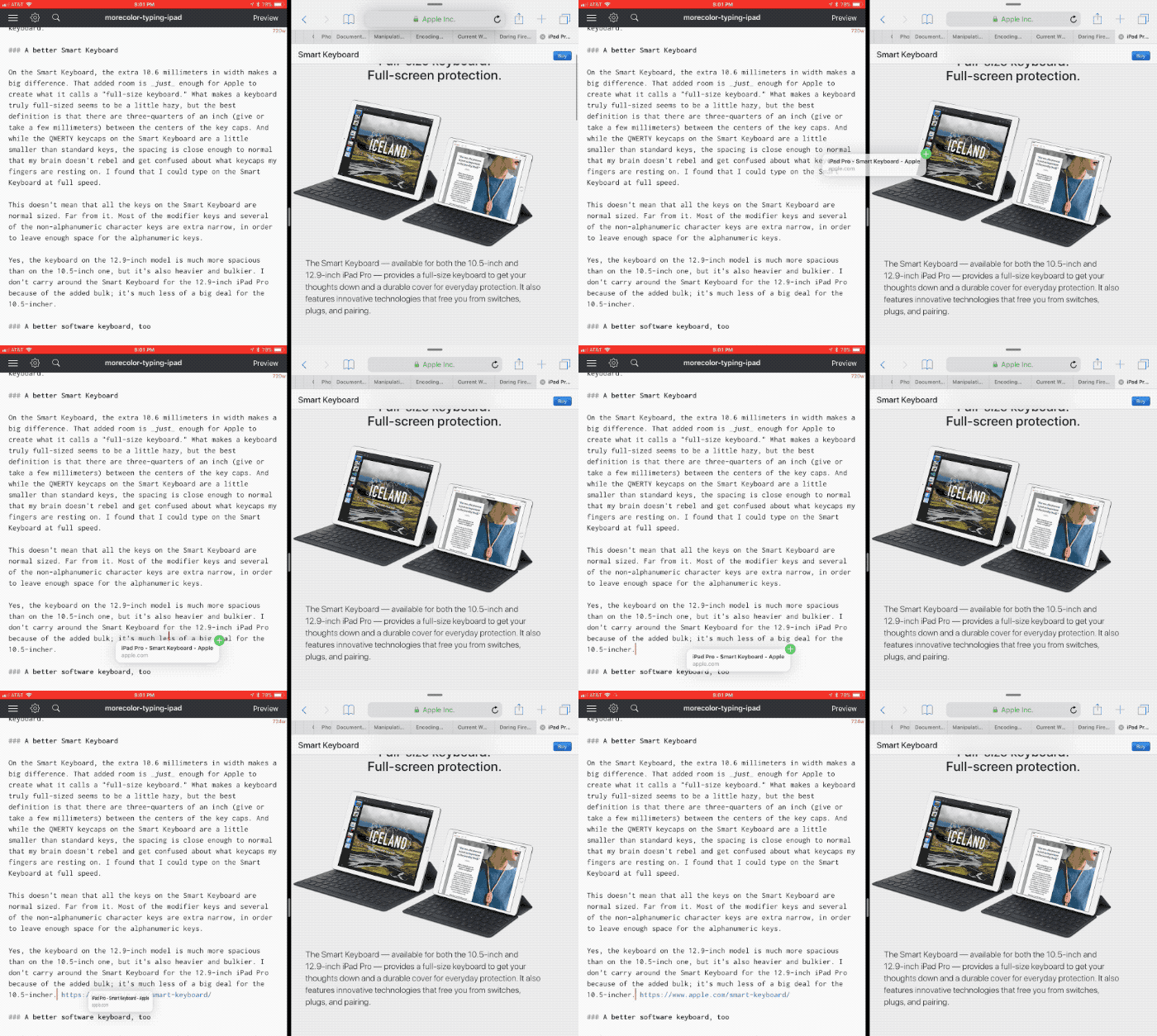 Jason Snell
 With Split View, you can perform a task like dragging and dropping a URL from Safari into a document you are creating with a text editor.
Here's how it works: With images and other items, you simply tap and hold your finger on an item. If it's draggable, you'll see it "lift up", as if being peeled off of a lower layer. If you're selecting text, you'll first need to select the text you want, then tap and hold on the selection to "lift up" that text.
Once you've picked up an item, you can drag it anywhere. If you're running in Split View, you can simply drag from the app on one side of the screen and drop it on the other side. It's simple and pretty functional, and is probably just how most of us envisioned using drag-and-drop on iOS.
But Apple's implementation goes way beyond that simple Split View drag. iOS 11 really embraces multitouch in a way that previous versions didn't. While you're holding that selection with one finger, you can perform other operations with your other fingers. This means you could tap on an app and switch to another view, and then drop the content there. You could even swipe up and into the multitasking view, then swipe to a different app, and tap on that app to bring it forward, and then drop the data.
Even better, the multitasking view is spring-loaded. When you drag a selection over an app and wait a moment, that app will zoom forward. This also works if you swipe up to reveal the Dock, then hold your selection over a particular app's icon. That app will zoom forward, ready for your data.
In some apps, such as Photos, you can make multiple drag-and-drop selections by "lifting up" one item and then tapping with another finger on other items to add them to the stack. You can even hand off items from one hand to another, by placing a second finger on the screen, dragging the selection over to your second finger, and then letting go with the first finger. It all feels logical and natural.
Apple has done a remarkable job in implementing drag-and-drop and making it feel natural—at least, after I trained myself to unlearn many of my iOS habits and assumptions built up over 10 years of using a less capable version of the operating system. But a few areas still feel a bit strange. When I drag a selection into another app, sometimes the feedback I receive from the second app about where I'm dropping my data feels inconsistent. For example, in Notes I would often drag a block of text and expect the insertion point to be right under my finger, but it would instead appear a paragraph too high or too low. It's a disconnect that really breaks the illusion.
Your favorite apps won't support drag-and-drop automatically—they'll all need to be updated for iOS 11. One of the things I like about Apple's implementation of drag-and-drop is that apps can decide for themselves what to do with different kinds of data, which allows them to do the right thing when receiving that data. An app that supports rich text can import that rich text, but one that only supports plain text will bring in the plain text instead.
 Jason Snell
 Drag and drop on the iPhone is limited to within the app you are using.
When I dragged an image out of Photos and into a Markdown text editor I use to write stories for the web, I fully expected the app to reject the photo or import something useless like its filename. Instead, the app took the photo, copied it to the same Dropbox folder that my text file was saved in, and inserted the proper Markdown image-referencing code into my file. That's some intelligent app design, but the end result is "it just works" simplicity that all app developers should aspire to.
Given how flexible drag-and-drop is on the iPad, I'm disappointed that Apple didn't embrace cross-app drag-and-drop on the iPhone. Sure, holding a selection while moving across full-screen apps is a bit of a handful—but it's not much more complicated than switching between items in Notes or Mail or Safari or Photos, nor is it more complicated than dragging across a visit to the Dock or the multitasking view on the iPad. Apple should enable this powerful feature for the iPhone, too.
So it took ten years, but at least it's finally here, and it's very good. If you're an iPad user, you may need to take some time to unlearn your old habits and expand your mind to new possibilities. Before you know it, you'll forget the rules of the last decade and begin dragging and dropping with abandon.
https://www.macworld.com/article/3226389/ios/ios-11-how-drag-and-drop-works.html#tk.rss_all
Sent with Reeder
Brief message sent from a mobile device
Subscribe to:
Posts (Atom)