For the FB'rs out there, here's some cool stuff.
Wednesday, July 21, 2010


Tuesday, July 20, 2010
Power Saving
Couple of useful articles on Technet....
First, Conserving Energy with Group Policy
Then, Sleep or Hibernate....
Lastly, not related to power saving exactly but a freebie that allows you to record your screen.
10 tweaks to make Office 2010 work the way you want
10 tweaks to make Office 2010 work the way you want: "
Office 2010 has a lot going for it — including better customization options. Deb Shinder looks at some tricks for making the new version work the way you want it to.
The latest version of Microsoft Office has some nice new features and usability improvements, but for many of us, the default settings just don’t do the trick. As good as Office 2010 is, you can make it better by customizing configuration settings and installing a few add-ins. In this article, we’ll look at 10 ways you can make your Office 2010 experience a better one. Some of these are new to Office 2010 and some are tweaks that were around for previous editions of Office, but which many people never knew about.
Note: This article is also available as a PDF download.
1: Change the default color scheme
This has nothing to do with how the Office programs work, but everything to do with the environment in which you work with them. Some folks probably don’t care a whit, but to me the baby blue default color scheme in Office 2010 is distracting and actually reduces my productivity. I’m not really happy with either of the alternatives, either. The ‘black’ is a muddy gray/dark tan color and it turns the folder pane and Today pane dark with white text, making it difficult to read. And the ‘silver’ isn’t very silver; it’s more of a light gray. But I settled on silver as the easiest on my eyes and the least in-your- face choice.
To change the color scheme in any of the Office 2010 programs, click the File tab, click Options in the left pane, click General in the left Options pane and select Silver in the Color Scheme drop-down box (Figure A).
Figure A

You can change the distracting baby blue default color scheme to silver or black.
2: Customize the Ribbon
When the Ribbon was introduced in Office 2007, there was a tremendous outcry. Part of that was just the human aversion to learning something new, but even those of us (yes, I confess to being one of them) who liked the Ribbon had a complaint: Why couldn’t we customize it to fit the way we work?
Microsoft listened and, in Office 2010, added the capability to customize the Ribbon. This makes it much more useful and should alleviate some of the confusion among those upgrading from Office 2003. Now you can customize the Ribbon’s main tabs and tool tabs, as shown in Figure B.
Figure B

New to Office 2010 is the option to customize the Ribbon to your liking.
You can remove commands you rarely use or group them differently to suit the way you work. You can create a new tab on the Ribbon or add your favorite commands to a new group on an existing tab. You can also rename commands. And of course, there is a ‘reset’ option so you can return the Ribbon to its default look. You can even export your custom Ribbon and then import it into another instance of Office 2010. So once you get it configured just right on your desktop machine, you don’t have to go through that whole customization process again for your laptop. This Office Watch article explains more about customizing the Ribbon.
3: Customize the Quick Access Toolbar
Much as I like my customized Ribbon, there are some commands that I want to have available regardless of which Ribbon tab I’m in. That’s where the Quick Access toolbar comes in handy. Many Office users seem to overlook this little gem, but it’s one of the first things I set up when I install any recent version of Office.
I have my own set of commands that I put on the Quick Access bar, including Save, Save As, Undo, Redo, Email, New Comment, and New Document. I also like to move the toolbar so that it’s under the Ribbon instead of above it, as shown in Figure C. To move or customize the Quick Access toolbar, right-click on it and choose the appropriate action.
Figure C

A customized Ribbon still doesn’t take the place of the Quick Access toolbar.
4: Turn on Live Preview
Sometimes when you copy and paste material into an Office document, it doesn’t end up looking the way you thought it would. It can be difficult to know which of the Paste options (e.g., Keep Source Formatting, Merge Formatting, Keep Text Only) to use. Office 2010 helps to eliminate surprises by including the Live Preview feature, which lets you see exactly how copied content will look when you paste it in an Office application. When you right-click and hover the mouse pointer over each Paste option, you get a preview of what it will look like if you use that option to paste the content.
For some reason, the Live Preview feature is not enabled by default. To enable it, click File | Options and select the Enable Live Preview check box on the General page.
5: Tweak AutoCorrect options
AutoCorrect is a great feature that can save you a lot of time by correcting common typos automatically. However, it can also drive you crazy when it ‘corrects’ what you intentionally typed. For example, by default when you type a word with two initial capital letters, Office corrects it by making the second letter lowercase. Most of the time, it’s a typo, and that’s what you want to happen. But what if you have a company name or product name that actually uses two initial capitals, such as TRick (a company named after someone named Thomas Rick)? Word will try to be helpful by changing it to ‘Trick.’
You could just patiently retype it the way you want it and Word will get the message and let it remain, but that takes extra time. You could turn off the TWo INitial Caps feature in the AutoCorrect settings, but then it wouldn’t correct the real typos of this nature. The best way to deal with it is to add an exception for TRick. Here’s how you do that:
- Select Options in the left pane of the BackStage menu, then select Proofing.
- Click the AutoCorrect Options button.
- On the AutoCorrect tab, click the Exceptions button.
- Click the INitial CAps tab and under Don’t Correct, type TRick and click Add, then click OK.
You can make exceptions for other types of corrections using the First Letter and Other Corrections tabs.
6: Create Quick Steps
One of the coolest new features in Outlook 2010 is Quick Steps. It allows you to create multi-step actions that you can apply to email messages. For example, I forward many messages to a particular person. Instead of having to click Forward, type in his name, and then click Send, I’ve created a Quick Step that lets me do all that by simply clicking a single button.
There is a wizard-type interface for creating a new Quick Step. Simply click Create New in the Quick Steps section of the Home tab and you’ll get the Edit Quick Step dialog box shown in Figure D.
Figure D

You can create Quick Steps to perform a multi-step action with one click.
6: Turn on Conversation view
In the beta version of Outlook 2010, the default arrangement for email messages was Conversation view. This view can make it easier to follow a discussion, as it consolidates all the messages in a conversation thread all into one nice package. In the final release, Conversation view was turned off by default. If you’d rather have it turned on, follow these steps:
- In the left column heading at the top of your message list, right-click where it says Arrange By: Date.
- Check the box that says Show As Conversations.
7: Install Social Connectors
The Outlook Social Connector (OSC) is built into Outlook 2010. It lets you install plug-ins that aggregate social networking information about your contacts in the People Pane at the bottom of an email message in the preview pane. Connector plug-ins bring in your contacts’ status updates and other information from social networking sites. The feature also displays other recent email conversations with that person, recent appointments, and the person’s profile picture. For more on how to use this feature, see Five tips for adding social media to Outlook 2010.
When Office 2010 was released in June, plug-ins were available only for LinkedIn and MySpace Microsoft has now added plug-ins for Windows Live Messenger and Facebook. It has also made the feature compatible with Outlook 2003 and 2007. This BNET article has the details.
8: Change default settings
No matter which version of Office you install, you should always go through the options and tweak the settings to suit yourself. In many cases, the defaults will work fine but in others, you’ll be happier with an alternative setting. For example, if Word’s grammar checker drives you batty (considering it’s often wrong, especially when it comes to complex sentences), you can turn it off by unchecking Mark Grammar Errors As You Type in the Proofing section of Word Options. You can also click the Settings button and specify which grammatical issues should be checked, as shown in Figure E.
Figure E

Each Office 2010 application offers many configurable options you can tweak.
On the Save page, you might want to change the default setting so that the applications save documents in the older .doc, .xls, and .ppt formats instead of .docx, .xlsx, and .pptx if you often share documents with people who use Office 2003. You also might consider saving autorecovery information more often than every 10 minutes. If you’re a fast typist, you can create a lot of content in 10 minutes. You also may want to change default save locations.
The Advanced page gives you a plethora of options for editing, cutting and pasting, images, how document content is displayed, printing, and more. Want to be prompted before saving changes to the Normal template? There’s a check box for that.
10: Install add-ins
You can enhance the functionality of Office 2010 by installing add-ins for the specific functions your work requires. For example, I use Twitter extensively to announce the publication of my articles and point my followers to interesting or useful tech articles written by others. It’s much easier for me to tweet from Outlook than to open up the Twitter Web site, so I’ve installed Twinbox, an add-in that lets you create updates, receive updates from those you follow, and manage and search tweets the same way you search your Outlook mailbox.
The add-in behaves a little differently in Outlook 2010, compared to Outlook 2007. In the latter, Twinbox puts a toolbar in Outlook underneath the other toolbars. In Outlook 2010, the Ribbon contains an Add-ins tab. You’ll have to go there to find your Twinbox toolbar, shown in Figure F.
Figure F

Add-ins such as Twinbox can add to the functionality of Office applications.
You can manage add-ins with the Add-in Manager, which you’ll find in the Options dialog box for each application.
Check out 10 Things… the newsletter
Get the key facts on a wide range of technologies, techniques, strategies, and skills with the help of the concise need-to-know lists featured in TechRepublic’s 10 Things newsletter, delivered every Friday. Automatically sign up today.

"
(Via 10 Things.)
Blocking Ads
I really appreciate all of the wonderful content freely available on the Internet. I actually seek out advertisers whose goods will meet my needs when their ads appear on sites or searches that are applicable.
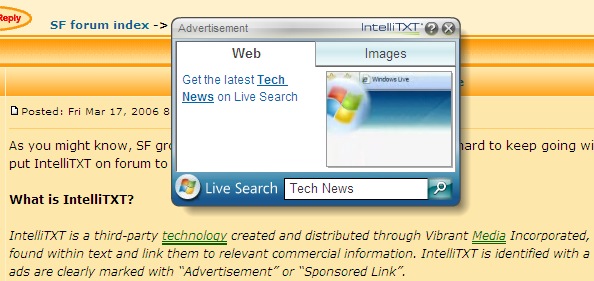
What I don't enjoy or appreciate are ads that are so highly obnoxious that they make reading a page difficult. We have received a lot of complaints about ads at a client's site created by one particular organization where a word has one or two lines under it and simply mousing over the underlined text brings up an ad that obscures the text you're trying to read.
What our network group did then, in response to multiple user complaints, was to block them at the network level. This can also be done on the computer level and that's what most home users would have to do but we have too many computers to work with for that.
The Internet router/firewall has the ability to block traffic to specific domain names. Most mid-grade and even some consumer-grade network routers have the functionality now.
They blocked the following domains:
- yieldmanager.com
- pubmatic.com
- inellitxt.com
- vibrantmedia.com
- atdmt.com
I know some people also block doubleclick.com but those ads tend to be far less annoying so we've left those.
We have, at least for the time being, successfully blocked the annoying hover-over ads and the users are much relieved.
Monday, July 19, 2010
Backup iPad/iPod/iPhone Settings
Came across this article the other day while helping a friend transfer settings from her iPhone to a new computer (the old computer died all together).
The changing face of IT: Five trends to watch
The changing face of IT: Five trends to watch: "
At our TechRepublic Live 2010 event earlier this month, I gave a presentation called ‘The Changing Face of IT’ in which I outlined five key trends that are changing the way IT is delivered, administered, and staffed. Here’s a summary of that presentation.
1. The consumerization of IT
We have been discussing the consumerization of IT on TechRepublic since 2007 when The Wall Street Journal published tips to help business professionals circumvent their IT departments. Back then, it was primarily an annoyance involving a few power users who were bringing their own Palm Treos into the enterprise and using a some unauthorized Web tools to get their work done.
Since then, consumerizarion has developed into a full-blown trend that nearly every organization — except for the ones with the tightest security or the most centralized IT departments — have to deal with. Workers are bringing their own laptops and smartphones into the office and connecting them to corporate systems. More people than ever are telecommuting or working from home for a day or two a week. And, the number of Web-based tools has increased dramatically, including many that have become favorites of business users, such as Evernote, Dropbox, and Google Docs.
This puts the onus on IT to craft pragmatic and effective computing policies and to help users understand which tools are safe to use and for which kinds of activities.
2. The borderless network
The old security model was for IT to build a big mote around the corporate network and only let trusted, authorized employees come across the well-guarded drawbridge and into the proverbial castle. However, that model has broken down as companies have had to make more and more exceptions — for example, VPN users working from home, smartphone users on the go, and extranet users via company partnerships.
As a result, today’s IT security model is more about risk management than network protection. Companies have to identify their most important data and then make sure it’s protected no matter who’s accessing it and from wherever and whatever device they’re accessing it from.
3. The cloudy data center
One of the most expensive and cumbersome aspects of the company headquarters — and even some large regional offices — can be the data center. It can make it difficult to reconfigure buildings because you always have to worry about the data center ramifications, which can be extremely costly and limiting.
That’s why some companies are looking to break the cycle and either consolidate and minimize their own internal data centers or outsource the data centers themselves. Some are doing it by going with more cloud computing applications like Salesforce.com. Some of renting server capacity from vendors such as Amazon AWS and Rackspace. Others are going the more traditional route and simply renting data center space from third party data centers that have already solved problems like power, cooling, and telecom redundancy.
Vendors such as EMC and Microsoft see this happening and they want to be part of the mix as well, so they are encouraging companies to virtualize all of their servers and create a ‘private cloud’ that has the flexibility of a cloud solution and the privacy and security of a homegrown server solution.
4. The state of outsourcing
Every time you mention the word ‘outsourcing’ among IT professionals (especially in the U.S.) there’s a predictable knee-jerk reaction. In most cases, they are associating outsourcing with ‘off-shoring,’ the practice of moving entry-level help desk and programming jobs to foreign countries (usually in Southeast Asia) where the labor costs are much cheaper.
However, outsourcing is a much larger trend, and off-shoring is just one part of it. Outsourcing is thriving in many different forms, and it’s reasonable to expect that it will accelerate. Big companies such as IBM, HP, and Verizon Business are offering to take over many of the maintenance functions for IT departments. In many cases, they’ll even keep IT pros on staff and on-premises but those IT pros will now get their paycheck from the vendor. The big benefit here is 24/7 monitoring since these large vendors have engineers in their sophisticated NOCs at all times, plus they have specialists who can solve more difficult problems when the need arises.
When companies move their maintenance portions of the IT department to outsourcers, that leaves business analysts and project managers as the primary job roles left for the internal IT department.
5. The mobilization paradigm
The computer revolution has put a PC on virtually every desk in the business world and in lots of other places where people work, from the sales counter to the warehouse to the patient exam room. While PCs still make sense on the desks of knowledge workers, for all of these other workers who regularly move around as part of their daily job, the stationary PC often changes the natural flow of their routine because they have to stop at a system to enter data or complete a task. That’s about to change.
Mobile computers in the form of smartphones and touchscreen tablets (like the iPad) have taken a big leap forward in the past four years. They are instant-on, easy to learn because of the touchscreen, and they have a whole new ecosystem of applications designed for the touch experience. In the years ahead, we’re going to see more and more development done on these mobile platforms, which will untether workers from their stationary PCs and allow them to interact with people and products in much more natural ways.

"
(Via Tech Sanity Check.)
Sunday, July 18, 2010
Guide: How to diagnose faulty RAM
A much overlooked area in troubleshooting that can cause odd issues....
Guide: How to diagnose faulty RAM: "
Memory is quick and easy to change, and because the result of buying new RAM is often a performance gain, it's one of the most common upgrades carried out on a PC.
But things don't always go smoothly, and faulty RAM causes its fair share of heartache. Repeated 'Stop' errors, freezes and other crashes may well be caused by duff memory.
Even if you've never upgraded your RAM, if your PC has difficulties like these, memory may still be the problem. Substituting it with some new RAM may help, but if your memory isn't actually the culprit, the expense may not be worth it.
To make sure that the RAM is at fault, you need to run some tests. The most efficient is MemTest86 – grab it from www.memtest.org.
Go to the Memtest site, choose 'Free Download' and opt for the latest version in ISO image form. This will be downloaded as a ZIP archive, so browse to it and double- click the file. Choose 'Extract All Files in Windows Explorer', then follow the wizard to extract the ISO file.
Use a free CD-burning program like CD Burner XP to burn the ISO image to CD. Launch the program and go to File > Write Disc from ISO File before finally browsing to the ISO image and clicking Write Disc.
See the walkthrough below for details on how to run the program.
Memtest86 is very thorough, and because it runs outside Windows you can be sure that you're checking RAM addresses that might normally be occupied by Windows components (and thus are likely to produce crashes).
Running continuous testing for a couple of hours should ensure that you've checked each address multiple times. The longer you run the test, the more accurate your results will be.
If you get errors reported and you have multiple RAM modules, remove all but one and run Memtest86 again. Swap your other modules in and retest to confirm which is causing the issue. This will save you from replacing more memory than necessary.
Once you've identified the faulty module(s), you can start looking for replacements. Your motherboard manual or PC documentation should tell you the specification of the RAM you need, but useful paperwork isn't always to hand.
Memory specialist Crucial provides a useful online tool to identify the type of RAM you need. You can either use its scanner tool (if you use Internet Explorer and you don't mind having your system probed or the possible privacy implications that this might have) or you can use Crucial's own Memory Advisor product.
This is a simple database in which you select the manufacturer, product line and model number of your off-the- peg PC, laptop or motherboard. Once you've found out the specification for the memory modules needed, you can shop with Crucial if you like, or you can browse Kelkoo and others to find the best price.
Thoroughly test existing memory
1. Boot from CD

Once your Memtest86 ISO file has been burned to CD, restart your computer so that it boots from this disc. You may need to enable CD booting in the BIOS or select the Boot menu at startup for this to happen. You should boot directly into Memtest86 and start testing.
2. Run automatic tests

Memtest86 automatically runs a number oftests on your RAM. If all is well, the memory should pass all of these tests. You can run continuous tests to detect intermittent problems. If errors are reported, you may need to replace one or more of your memory modules.
3. Configure specific tests

You can configure the program by pressing [C] while it's up and running. This opens a menu that gives you the full choice of tests to run and enables you to set a memory address range to test. That option may be useful if you're getting intermittent problems.

Related Stories
 |  |
"
(Via TechRadar: All latest feeds.)
Friday, July 16, 2010
10 ways to make sure you and your clients see eye to eye
I really liked this article, great reminders.
Thursday, July 8, 2010
Free Text Messaging Is Possible
Free Text Messaging Is Possible: "Google Voice, now open to everyone, provides free text messaging."
(Via Pogue's Posts.)
Subscribe to:
Posts (Atom)