Tuesday, April 6, 2010

3 Ways to Enable the Built-In Windows 7 Administrator Account

Thanks, Petri!

3 Ways to Enable the Built-In Windows 7 Administrator Account: "

In Windows 7, like Windows Vista, when you install the operating system, you are asked to enter a user name which will be the primary local user that will use this system.


Like in Windows Vista, in Windows 7 the built-in Administrator's account is disabled by default. Furthermore, this account is not associated with any password.


Petri Recommended: Update to the Latest Vista Drivers

Vista's performance can be improved dramatically by installing the latest Vista-Certified hardware drivers. PC hardware manufacturers release new, improved Vista drivers continually: New versions are probably available for your PC right now.


The new user which is created during the installation is configured to be a member of the built-in Administrators group, and in fact, can be used for any management task. That use is in fact equivalent by all means with the original built-in Administrator account.


However, there may be situations where one would like to use the built-in Administrator account instead of that 'new' user. One of these might be when you're building a system for cloning purposes, and would like all cloned machines to be able to use the built-in Administrator's account.


Note that since that account does NOT have a password, enabling it without properly setting a password for that account will open a serious security opening on your system!


There are basically 2 easy methods of enabling the built-in Administrator's account and 1 advanced method.


Method #1 - Using the Local Users and Groups Snap-in


To enable the built-in Administrator's account by using the Local Users and Groups snap-in please follow these steps:


Open Local Users and Groups. You can do so by typing lusrmgr.msc in the Start search box or in the Run command and pressing ENTER. Or, you could open Computer Management by right-clicking Computer in the Start menu and selecting Manage.


Expand System Tools > Local  Users and Groups > Users.


Right-click the Administrator account and select 'Set Password'.


In the'Set Password for Administrator' click 'Proceed'.


In the'Set Password for Administrator' enter the Administrator's desired password twice, and click 'Ok'.


Next, enable the Administrator's account. Right-click the Administrator's account and select 'Properties'.


Un-chek the 'Account is disabled' check-box. Click on the 'Ok' button.


Administrator's account is now enabled and configured with a password.


Method #2 - From the Command Prompt


To enable the built-in Administrator's account by using the Command Prompt  please follow these steps:


1. Click Start and type CMD, then press Enter. It is best to run the Command Prompt as an Administrator. To do so, right-click CMD and select 'Run as Administrator'.


When prompted to allow the Command Processor to run, click on 'Yes'.


BTW, you can also hover over the CMD line and press CTRL + SHIFT + ENTER to invoke the 'Run as Administrator' shortcut.


In the Command Prompt window, type:


net user


Note how the Administrator account is there, yet the new user account has not been yet created.


To set the Administrator's account password:


net user *


Then enter the required password and confirm it.


To enable the Administrator's account:


net user administrator /active:yes


Method #3 (Advanced Users) - During the Installation Process


There is a 3rd method which advanced users can use. This method can be used during the installation process itself.


During the installation, after being prompted to configure the new user account, you will be able to set the new account's password.


At that phase, press SHIFT and F10 keys together. A Command Prompt window will appear.


In the Command Prompt window, type:


net user


Note how the Administrator account is there, yet the new user account has not been yet created.


To set the Administrator's account password:


net user *


Then enter the required password and confirm it.


To enable the Administrator's account:


net user administrator /active:yes


Close the Command Prompt window and continue with the installation process.


If you log off you will now see the Administrator's account as a valid logon option.


iPad Tips & Tutorials

Macworld just did a story on how to use the iWork apps on an iPad. Good stuff, I'll have to read through it myself.

Apple's site has guided tours.

Apple's support site with help for...

PagesNumbersKeynoteEverything

Ten different ways to connect to servers

Very handy post to OS X Hints, also be sure to check the comments for a couple of others.

Ten different ways to connect to servers: "Watching someone else working on his Mac (especially in a bigger network environment with many servers) showed me that not everyone seems to know that there are different types of servers, and different ways to mount them in Finder. And not everyone really uses the best way -- although there is never the best way and everyone has to find his/her way for the best workflow handling. But did you know all the following ways of mounting a server?


Read the rest of the hint for 10 different ways to mount a server share....


  1. The browser way


    Maybe you can find the server of your choice directly on the Finder sidebar, or you have to click on All on the Finder sidebar and then scroll through the server list. Double-click on a server and you will see the shared folders provided for guests, or someone with your username and password. Click on 'Connect as...' to authenticate with a special username and password.


    This way may be the best way to access...


    Add to digg
    Add to Reddit
    Add to Slashdot
    Email this Article
    Add to StumbleUpon


"


(Via MacOSXHints.com.)

Test Your Web App on an iPad

You can of course buy an iPad to test your web app, or you can now go to ipadpeek.com and plug in the address for a fairly good representation of how it will render.

Guide: How to automate Windows applications

Guide: How to automate Windows applications: "

The first part of this tutorial explained how AutoIt can help you to automate tasks by simulating keypresses. But while this is a powerful technique that enables you to control just about any application, it does have its problems.

The scripting code quickly becomes cryptic; there's no way to tell what a keypress sequence does without looking at the app. It's not always reliable, either – a simple interface change can break your keypress sequence and force you to start again.

However, there's a smarter automation alternative out there called the Component Object Model (COM). Some apps use it to make their functionality available to other scripts and programs, including Windows, Microsoft Office, Skype and many others. Using it you can send emails in Outlook, automate Skype calls, create spreadsheets and more.

Getting started

The first step in using COM is to create a variable that refers to the application object we need (or create an instance of the object, in programmer-speak). In AutoIt, that looks something like this:

$oShell = ObjCreate('Shell. Application')

The 'sign tells us that this is a variable called '$oShell'. We use a lower-case 'o' as the first letter of the variable name to reminds us that this is an object. We then ask the ObjCreate function to create a 'Shell.Application' object. This is a copy of Explorer that gives us instant access to lots of useful Windows features.

desktop

The easiest way to make use of an object is to apply one of its methods. These are commands that the object makes available. Our Shell.Application object, for instance, has a method called 'MinimizeAll' that will minimise all open application windows so we can see the desktop. We can use it by applying that method name to the variable we've just created, like this:

$oShell. MinimizeAll.

Similarly, we can use $oShell.UndoMinimizeAll to undo the minimise command, restoring application windows to their previous positions. We can also rearrange windows by appending TileHorizontally, TileVertically or alternatively CascadeWindows.

Our Shell.Application object provides plenty of handy shortcuts, too. If we want to launch the Search window, for instance, then we can use this:

$oShell.FindFiles.

Then there's the 'FileRun' method, which launches the Run box; 'SetTime', which opens the Date and Time dialog; and 'ControlPanelItem', which displays an applet that you specify. For example, typing ControlPanel Item('Inetcpl.cpl') will launch the Internet Options dialog.

microsoft help

Need some more? Check out the official Microsoft Shell.Application documentation for the full list of methods here.

Controlling services

We've started gently with some of the simpler Shell.Application options, but the object provides plenty of more interesting features for us to explore.

The 'AddToRecent' method, for instance, will add the document you specify to the Windows Recent Files list. Use it like this (ensuring that 'c:\file.ext' is replaced with the path of a real file on your PC):

$oShell = ObjCreate(FShell.Application') $oShell.AddToRecent('c:\file.ext')

By adding more file names, you could customise a script like this to ensure that the Recent Files list always includes a particular set of commonly used documents.

Alternatively, you could protect your privacy by creating a script that replaces the Recent Files list with your choice of files, so nobody can use it to keep an eye on what you've been doing. The ability to stop and start Windows services introduces more interesting possibilities.

You could create a script to close down non-essential services to save resources before you run a demanding game, for instance, and another that will start them again afterwards. Here are a couple of short examples of this:

StopServices.au3
$oShell = ObjCreate('Shell. Application')
$oShell.ServiceStop('wuaserv', false)
$oShell.ServiceStop('wsearch', false)
StartServices.au3
$oShell = ObjCreate('Shell. Application')
$oShell.ServiceStart('wuaserv', false)
$oShell.ServiceStart('wsearch', false)

Here the 'StopServices.au3' script begins by creating a Shell.Application object, then uses the 'ServiceStop' method to stop the 'wuaserv' (Windows Update) and 'wsearch' (Windows Search) services. The second ServiceStop value tells Windows whether you want this change to be permanent. Set it to 'true' and Windows will disable the service, so it won't start when you next reboot.

However, as the Search and Windows Update services are important, we only want to turn them off temporarily, so we should set the second value to false. Run this script first to free up RAM and system resources, then launch your hungry app. When you're done, run the StartServices script and it'll reverse the process, using the ServiceStart method to relaunch services that were closed.

If you forget to run StartServices, don't worry – any services you've paused will be started again the next time you reboot. To make this really useful we could expand it to include other non-essential services. Candidates for this include Spooler (the print spooler), BITS (Background Intelligent Transfer Service), EMDMgmt (ReadyBoost) and third-party services such as Apple Mobile Device (only necessary when you're connecting an iPod or iPhone to your PC).

services

To explore this further, run services.msc to view the services that are active on your PC. Find a service that you think is nonessential and could be turned off safely for a while. Double-click it and note the service name. Disabling a critical service could disable your PC, so check at www.blackviper.com to confirm that a service is safe to turn off temporarily.

If it is, add $oShell.ServiceStop('W32Time', false) to StopServices.au3 and $oShell. ServiceStart('W32Time', false) to StartServices.au3.

Automating Word

If you've got a copy of Word installed, you can automate the creation of a Word document with a script along these lines:

$oWord = ObjCreate('Word. Application')
$oWord.Documents.Add
$oWord.Selection.TypeText('Some words go here')
$oWord.ActiveDocument. SaveAs('c:\autoitcreatedme.doc')
$oWord.Quit

Here we've created a 'Word. Application' object (essentially loading an instance of Word) and added to its collection of documents (you could have several open at once, but this just creates the first).

The 'Selection' property corresponds to the current insert point, where the cursor would be if you'd opened the document manually, and the 'TypeText' method enters some text there. Finally we save our work to a specified path and use the 'Quit' method to close the object.

The last step isn't strictly necessary when it's the end of the script, but if we were carrying on then it would be a good idea. A Word.Application object takes up a sizeable amount of RAM, and it's worth freeing that up as soon as you can.

Word

You can extend scripts like this in many different ways. Open a document instead of creating one by replacing '$oWord.Documents.Add' with $oWord.Documents.Open('c:\filename.doc'*.

Style the text in your document by setting the font name – add $oWord.Selection.Font.Name = 'Arial' – and size – use $oWord. Selection.Font.Size = '24'. Add the line $oWord.PrintOut() before the final 'Quit' and it'll send your work to the printer too.

Using Outlook Microsoft

Outlook provides a powerful COM object that presents all kinds of automation possibilities. Perhaps the most useful of these is the ability to send an email from a script. Here's an example:

$oOutlook = ObjCreate('Outlook. Application')
$oMsg = $oOutlook.CreateItem(0)
$oMsg.To = 'persons.name@ domain.com'
$oMsg.Subject = 'COM test'
$oMsg.Body = 'important content goes here'
$oMsg.Send

Our script starts by creating an 'Outlook.Application' object. This will usually load Outlook if it's not running already, but it may not always work. Launch Outlook before running the script if you get errors. The script then uses '$oOutlook' to create a further object and '$oMsg' to create a new message before setting its recipient, subject and body.

We could have set a CC address using $oMsg.CC = 'you@youraddress.com' or the sender's address with $oMsg.SenderEmailAddress = me@myisp.com, but simpler is better right now.

We finish with the 'Send' method, which sets our message on its way. At least, that's the plan. In practice, you'll probably find that Outlook pops up a message complaining that a program is trying to access it to send emails. This is a security feature that's designed to stop malware using your PC to send spam, but unfortunately it'll block your legitimate script too.

warning

If you'd like to be able to send emails from a script then the best solution is to install Advanced Security for Outlook. This clever tool detects programs trying to access Outlook and gives you the option to block them if they're unexpected or run them without warnings if you're sure they're legitimate. It works on every version of Windows from 95 to 7, and every version of Outlook from 2000 to 2010. Best of all, it's free.

Going further

If you're interested in using COM to automate functions and would like to create more advanced scripts, you'll need to learn more about COM and the individual objects that different applications make available. The simplest way to go about this is to open the AutoIt Help file. Click the Contents tab and select 'Obj/COM Reference' to find a quick COM primer with some handy examples, including one on automating Excel functions.

If you expand the Word Management folder, you'll find information on some functions bundled with AutoIt that let you automate Word. Look at the example for '_Word DocAddPicture', for instance, to see how you can create a Word document from an AutoIt script and then add some pictures to it.

The AutoIt forum is another essential source of help. If you have a question, it's probably been asked before, so the Search tool should reveal a variety of useful answers. If you're lucky, someone may have already uploaded a script that does what you want in the Example Scripts section of the forum. Be sure to search the forum before you start writing something – you could save yourself a lot of time.

If you're feeling really ambitious then you could browse Microsoft's own documentation. Its pages on the Shell.Application object don't use AutoIt examples, but you'll get more details on the various methods the object makes available and how they should be used.

Alternatively, if you don't have much use for COM then you could simply wait until the next issue of PC Plus for the third and final part of this tutorial series. We'll be combining everything we've learned so far, giving our scripts an interface so that they can communicate with the user, adding some low-level tricks and showing how the leading AutoIt scripts can compete with the best that any other programming language has to offer.


"


(Via TechRadar: All latest feeds.)

iPad Tutorials

Came across ScreenSteps.com who has some simple iPad lessons on their site.

Friday, April 2, 2010

10 things to consider when choosing a help desk system

10 things to consider when choosing a help desk system: "

The right help desk system can make all the difference in the success of your firm or IT group. Before you commit to a solution, be sure you’ve considered all the angles.


The consulting firm I work for recently asked me to find a solution to meet our help desk needs. Specific qualifications had to be met for this help desk system to become ‘the one.’ I assumed the task would be simple — after all, I’ve spent the last 10 years covering software of all sorts, including help desk tools. The reality was much different. There are a LOT of help desk systems available. So many, I quickly realized just how challenging the selection would be.


During the process, I also realized how important it is to know exactly what you are looking for and how to find what you need. Thus, I came up with this list of the most critical factors to consider while searching for a help desk system.


Note: This article is also available as a PDF download.


1: Know your budget


You will find help desk solutions ranging from $0 to just about any figure you can image. I came across systems that priced out at nearly $900 per tech. Our firm has seven techs — you can do the math there. Other vendors charge a monthly fee, and although some of them offer a number of amazing features, the cost was out of reach. We knew our budget, so that dictated which tools were out of limit. With your budget in mind, don’t make any assumptions that the more you pay, the better the tool will be. And considering that we wound up choosing an open source solution (free) that had every feature we needed, cost can be misleading.


2: Map out and prioritize the features you need


A help desk system can be a make or break a firm. This tool will help you manage your tickets and track the flow of work. Without such a system, you’ll have a difficult time ensuring all of your customers are taken care of in a timely manner. For our situation, one of the key components was the ability for clients to submit tickets via email. Beneath the email system, we needed to be able to assign tickets to specific techs as well as elevate tickets. Because we knew exactly what we were looking for, we were able to quickly weed out the systems that didn’t cover our bases.


3: Check email compatibility


One of the issues we had in finding an email-submission system was that the system had to be compatible with an Exchange server. Because Exchange doesn’t play well with others, this made the task quite a challenge. So great was this challenge, we had to rethink the process of email ticket submission and enable IMAP for email. A number of systems are compatible with one email server or the other. Very few are compatible with both.


4: Think database


One of my personal requirements was that the system be database driven. Because one of the help desk system’s primary goals was keeping tabs on the flow of business, being able to rely on this system, as well as back up the data, was crucial. Having a system based on a database makes backing up a much easier (and more reliable) task. If you will be reyling on this system for business, think very seriously about finding one that requires a database.


5: Don’t forget security


In many cases, your ticketing system will be passing client data back and forth. This data might contain passwords, addresses, names, and other sensitive information you don’t want outsiders to lay their eyes on. For this reason, make sure the tool you select can be secured in both environment and data transfer. If you are using an email-driven ticketing system, consider SSL or some form of encryption.


6: Personalize your email templates


If you want to use email for ticket submission, you will most likely be replying to those emails with auto-responses. But you won’t want to use generic templates that don’t make your clients feel like they’re being taken care of. Generic responses make people think they’re a number. And since you depend upon client loyalty, you want them to know how important their business is. Make sure you take the time to personalize those templates so that your business and the personality of your business are reflected.


7: Consider the need for a Web interface


Some tools offer both email-based and Web-based ticket submission. Many clients want the ease of email submission. But others prefer the control of a Web-based system. Some clients will not want just anyone being able to submit a request to an email address. With a Web portal, some clients will feel they have more control over how, when, and why their employees submit help requests.


8: Evaluate ticket management features


You might assume that all help desk systems would be able to granularly manage tickets. Assigning, re-assigning, escalating, resending, closing, canceling… you’d think all systems would include these capabilities. That is not an absolute. Some systems offer more in the way of ticket control than others. Know how much control you want over your tickets before you start looking at the offerings. Don’t settle for a system that doesn’t offer the control you need — you won’t be able to ‘make it work for you’ in this case.


9: Be sure you’re branded


Both in email submissions and Web fronts, your help desk must be branded for your company. The last thing you need is for your clients to think you don’t care enough to make your tools ‘yours.’ Sending out auto-responses that say, ‘This ticket submitted by HELP DESK’ is just not professional. Make sure the tool you choose can be branded with your logos, URLS, information, copyright information, and legal information (if necessary). Do not settle for anything less.


10: Make it easy


Your help desk system needs to be useful to your users. If you wind up with a system that is overly complicated, it will hinder your company’s ability to work smoothly. The point of a help desk is ‘help.’ Over the period I spent testing various tools, I came across very easy tools and insanely difficult tools. Fortunately, most tools offer an online demo or a trial period. Take advantage of that to find out if the tool you are considering is user-friendly enough for your employees. Otherwise, you may find your help desk system is more hindrance than help. For the sake of your employees and your clients, choose wisely.


A critical tool


Remember, this tool will serve a much greater purpose than allowing clients to tell you they are having trouble. It will make your workflow reliable and productive, and far fewer tickets will fall through the cracks.


If you have good (or bad) things to say about the help desk systems you’ve used, share your experiences with other TechRepublic members.


Check out 10 Things… the newsletter


Get the key facts on a wide range of technologies, techniques, strategies, and skills with the help of the concise need-to-know lists featured in TechRepublic’s 10 Things newsletter, delivered every Friday. Automatically sign up today.


"


(Via 10 Things.)

Apple's Pages App

Now that Apple's productivity applications will be getting a little more attention, I thought it might be about time for me to give Pages another crack. I really like it and there are a few instances where it just did stuff Word couldn't (or I couldn't figure out how to make it work) with layouts for a nice doucment though I could export it from Pages to Word and all was fine.

What's really kept me from using Pages is that it won't save a Word-created document as a Word document unless you manually export it each time. If I were in a world and office full of other Mac/Pages users, this wouldn't be much of a problem, however that's far from the case.

So this morning I Googled around and discovered a relatively painless way to automatically save documents in the Microsoft Office format. Check this blog for the details. I've re-posted some of his instructions below.

### Lee Findlow's Instructions Below ###

In common with Apple’s other recent “mishap”, there are just a couple of things you need to change in a .plist file. It’s nice & simple and only takes a couple of minutes, or if you’re lazy you can download the file which I’ve posted below.

For the technically minded
What you’ll need
For the sake of easiness I am be going to using Property List Editor, it comes included with Apple’s developer tools, if you haven’t got this installed it is still possible to do so, simply using TextEdit, although that is significantly more complicated, and I would reccomend that you download the .plist file at the end of this entry.

Update (11/8/09): As has been pointed out in the comments the actual plist entries which you are required to edit has changed with updated versions of iWork, please bear this in mind and look out for it when you follow this tutorial!

First off, you need to open the Pages.app package, to do this simply browse to it using finder, then right-click and click “Show Packages Contents”.

B7999B1E-01F0-4899-AC1D-07F8D20C45E4.jpg


Now a new Finder window will appear, this allows you to browse around the … Package Contents, although for now we’re only interested in one file, “Info.plist” (in the Contents folder). This is what appears to be Pages’ main configuration file, so by editing it we can adjust the behaviour of it.

I would recommend that you make a backup of “Info.plist” before you do anything, just in case something bad happens, to do this simply copy it to somewhere you’ll remember (like the Desktop). Now double click on the original file (within Package Contents) to open it with Property List Editor.

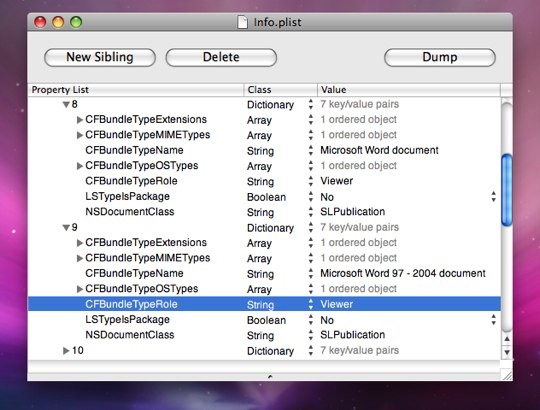
Now we’re getting somewhere, you will see a view of the properties associated, you need to expand the “Root” by clicking the triangle/arrow to the right of it, and then expand the “CFBundleDocumentTypes” in the same way. This gives a list of numbers, and you then need to expand 8 and 9, which will let you view something similar to this:

C652D0B5-F99D-4938-A8CB-F70BA9B35278.jpg


The properties which you need to change are CFBundleTypeRole, for both instances (shown above) change them to “Editor” (without quotes), you can do this by double-clicking on where it says “Viewer”. Now you just need to save the file (File>Save), close Property List Editor, and you’re good to go.

Now when you open up a Word Document using Pages and try to save any pages it should all work seamlessly, although you may notice a small progress bar like this:

BA609A24-7F81-4F57-B28C-D1E1E06C8D44.jpg


Which is nothing to worry about, it just let’s you know that all is working well.
Hopefully that was easy enough to accomplish, if not here’s the easy version below:

For the not-so-technically minded
Here’s a version of the above tutorial which accomplishes the same output but with fewer steps, just to make life easier for you

Follow steps 1 and 2 above.
Download the updated Info.plist from here: Info.plist, you may need to tell your browser to download it (right-click, Save Link As).
Copy the new Info.plist into the Contents folder of the Package Contents window. Now just close this and re-open Pages to have the ability to save Word Documents.
Conclusion
I think that it is rather odd that this support isn’t enabled by default, after all when you open a document the last thing you’ll want to do is save it somewhere else, as that’s what “Save As” is for. To me it is a completely illogical step for a user to have to take, and I can imagine there being many “.pages” documents inadvertently being passed around by unsuspecting iWork users. Although maybe this is Apple’s way of promoting the software, with the hope that people who receive these “weird” files will end up paying for software that they don’t necessarily need?

I hope that this post has covered everything, and that it is easy enough to understand. If you have any questions please leave a comment and I’ll try my best to help you out.

SQL Server Database and Account Move

Recently a client wanted to move their enterprise SQL server database to a new server running as a virtual machine. It was a simple enough task to backup the database using the SQL GUI tools and restore it to the new database but the logins didn't move over because they were kept outside of the database. We found this article on the Microsoft KB describing how to migrate the login accounts as well.

Thursday, April 1, 2010

Your Own Personal Cell Tower!

AT&T is soon releasing a mini-cell tower that connects to your home Internet connection and gives you reduced rates. You pay for it once for $150 and then it just ties in with your existing Internet connection. Just read about it on TechRepublic.