The new Apple TV has plenty of great features - including a new set of gorgeous screensavers that's created through a series of aerial video shots from across the globe. These videos kick in on the Apple TV, and show night or day scenery depending on the time of day. One ingenious developer figured out where Apple has hosted these videos on their servers, and he's found a way to use the same screensaver on Mac running OS X so you can view the beautiful aerial footage when your computer's at rest.
To get the screen saver on your Mac, perform these steps:
1. Open this link in your web browser, where you'll find the latest release of the screensaver on GitHub.
2. Click on "Aerial.zip" to download the latest version.
3. Once downloaded, double-click the zip file to expand the .saver file that's inside.
4. Double-click the .saver file to launch System Preferences and be asked if you'd like to install for the current user or all users; select "Install for this user only" and click the Install button.
5. Under System Preferences > Desktop & Screen Saver > Screen Saver, select the newly installed "Aerial" screen saver. You can now close your System Preferences.

Once you've performed these steps, the screensaver will kick in the next time you've left your Mac idle for too long. If you'd like to customize the screensaver (such as which aerials are shown), then navigate to System Preferences > Desktop & Screen Saver > Screen Saver > Aerial > Screen Saver Options.
Most of us know that Dropbox is a cloud storage service that syncs files in a folder on your Mac with your account in the cloud.
There is, however, a great deal more to Dropbox than just storing, syncing, and sharing files. Firstly, there's the ability to use the Dropbox iOS app to automatically upload photos taken with your iPhone or iPad to Dropbox.
You choose which photos or other files to upload and where in your Dropbox account to store them. Then there's copying a Dropbox link to your clipboard with a click, and thanks to iOS share sheets, you can push files to your Dropbox account from other apps, like Photos.
These lesser-known Dropbox features will help you get as much from it as possible.
1. Back-up your blog
You can back-up your blog on your own hosting space, but that won't help you if your web host has problems with its servers or you get locked out of your account. Wordpress Backup to Dropbox is a plug-in for Wordpress which allows you to back-up to Dropbox at a frequency you choose.
Download the plug-in, install it on your Wordpress blog, set the frequency of the backup, and you're done.
2. Host a website
Why pay for web hosting when you can use the storage on your Dropbox account? OK, so you won't get any of the bells and whistles you get with a hosting account, but if all you need is to be able to host a few HTML pages, it's ideal.
Go to Pancake and set up an account, then publish text, CSS, Javascript, Markdown and HTML files stored in Dropbox. All the instructions are on the website.
3. Dropbox, IFTTT, Flickr
If This Then That can monitor a specific folder in your Dropbox and perform an action on any file added to it. Go to the website and create an account, then add your Dropbox and Flickr accounts.
Create a 'recipe' with Dropbox as the trigger, and select a folder. Set Flickr as the Action and leave other options at their default. Now, when you upload a photo to that Dropbox folder, it will be added to your Flickr page.
4. Print PDFs to Dropbox
Want all those online shopping receipts in one place and on all devices? Create a folder for them in Dropbox. Then, whenever you buy anything, print the receipt but click the PDF menu on the print dialog.
Now click Edit Menu and in the next window, click the '+' and navigate to the folder you just created. The folder will be added to the list, and next time you can select it to save a PDF receipt to it.
5. Sync selectively
By default, Dropbox syncs everything you store in it with your Mac, and if you have a Pro account that could be quite a lot of disk space.
You can, however, choose what to sync. Click the Dropbox icon on your Mac's menu bar then click the cog at the bottom. Click Preferences > Account. Opposite 'Selective Sync', click Change Settings and then untick the folders you don't want to sync.
6. Synchronise preferences
Some apps allow you to put preference files in a shared folder and open instances of the app on different machines, but with the same setup thanks to the synced preferences.
Others, such as Scrivener, allow you to work on different machines by syncing the document file. In both cases, you can use Dropbox to store the file. As Dropbox keeps a local copy of everything you store in it, the app sees it as just another folder.
7. Access files offline on iOS
The Dropbox iOS app allows you to Favourite files stored in your Dropbox. Why would you want to do that? Because when you Favourite a file, it's downloaded to your device and is accessible offline.
So if you store music in Dropbox (you can play music directly from the Dropbox app), you can Favourite a folder with tracks in it to download them and listen to them when you haven't got an internet connection.
8. Easily add to iBooks
iBooks is a great place to store, organise, and read PDF instruction manuals and reports. You can add them directly from Safari in iOS, but what if they're on your Mac and not online?
Copy it to Dropbox on your Mac, find it in the Dropbox app on your iPhone or iPad, and tap 'Open in' then 'iBooks.' The PDF will open in iBooks and be added to your iBooks library.
The same trick works with non-DRMed ePub books.
9. Move a file
Moving a file from one folder to another isn't easy on iOS. Thankfully, there's another way. Find the file you want to move, then swipe left to right over it to reveal options.
Tap the box with an arrow coming out of its side. Now navigate to the folder you want to move it to and tap Move at the bottom of the screen. Alternatively, tap Create Folder to put it in a new folder.
In today's Ask the Admin, I'll show you how to quickly set up Windows Server 2016 Technical Preview 3 (TP3) in Azure and deploy containers using Docker.
Unless you've been living under a rock for the past couple of years, it's likely you'll have heard of Docker and containers. Docker is a system for managing containers, a technology that's long been native to Linux and is now included in Windows Server 2016 TP3. Nonetheless, if you need a bit of refresher, see What is Docker? and Are Docker Containers Better than VMs? on the Petri IT Knowledgebase.
As it stands in the current technical preview, Windows Server containers can be managed using PowerShell or Docker, but it's worth noting that containers created with Docker can't be managed using PowerShell, and vice versa. Just as in Linux, Windows Server containers can be managed natively, and for more information on that see Aidan Finn's series of articles Managing Windows Server Containers with PowerShell.
For the purposes of this demo, we're going to use Windows Server 2016 TP3 in a virtual machine (VM) running in the Azure cloud because Microsoft has a preconfigured image where the Containers role and Docker agent are preinstalled with the necessary configuration steps already performed, meaning we can get down to the nitty gritty much quicker.
If you want to set up your own containers host on a local server, instead of using the preconfigured Azure VM, you can download and run the following script on a virtual host running Windows Server 2016 TP3 to configure a VM, replacing myVM with the name of the new VM and password with the password for the VM's administrator account.
I'm not going to perform a complete walkthrough of this step in this article as you can find detailed instructions on how to deploy a VM using the Azure preview portal in an upcoming article titled, Deploy a VM using Azure Resource Manager. All you need to do is select the Windows Server Container Preview image and deploy the VM with the default settings.
Alternatively, you can use the Azure management portal to deploy a VM using the classic model, i.e. in a cloud service. For more information on using the Azure management portal to deploy VMs, see Deploy Windows Server 2012 in an Azure Virtual Machine on Petri.
Create a New Container from an Image
Log in to your Windows Server container host, no matter how you deployed it, using the local administrator account. In the Azure VM, you only have access to the command prompt. If you deployed full Windows Server yourself, you'll need to open a command prompt and then follow the instructions below:
Type powershell in the command prompt and press ENTER.
To list the existing Docker images on the server, type docker images in the PowerShell console and press ENTER. You should see an image called windowsservercore in the list.
List the available Docker images (Image Credit: Russell Smith)
Now let's create a new container using the windowsservercore image. We'll use the docker run command to do that, which combines two actions: create and start. Run the command below, replacing petricontainer1 with a name for your new container.
docker run -it --name petricontainer1 windowsservercore cmd
The –it parameter specifies an interactive session, and cmd launches access to the new container via a command prompt.
Once the docker run command has completed, notice that the command prompt loses its 'PS' prefix and switches to C:\Windows\System32>, indicating that you're now controlling the container and not the host server.
You can now run any command you like in the container. I'm going to create a directory called petricontainer just as a means of checking later whether I'm really running in a container or the host server. To create a directory in the new container, type mkdir c:\petricontainer and press ENTER. Additionally, if you run ipconfig /all, you'll notice the container has a different IP address than the host server.
To quit the container session and return to the host server, type exit in the prompt window and press ENTER.
List, Start and Attach Docker Commands
Now that we have a container installed on the host server, you should be able to see it in the list of available containers:
To see the available containers on the host server, type docker ps –a in the command prompt window and press ENTER.
Start and connect to a Docker container (Image Credit: Russell Smith)
To reconnect to the container we just created, you'll first need to start it. Type docker start petricontainer1 and press ENTER, replacing petricontainer1 with the name of the container you deployed.
To re-enter the command prompt for administering the container, type docker attach petricontainer1 and press ENTER, again replacing petricontainer1 with the name of the container you deployed.
After running the above command, you may need to press ENTER in the command prompt window before getting to a prompt indicating that you are now working inside the container and not the host server.
If you list the directory contents of the C drive, you should see the petricontainer folder listed, indicating that you are indeed working in the container and not the host server.
Type exit and press ENTER in the command prompt to return to the host server.
Create a New Image
We can now use the container we just modified to create a new image. Follow the instructions below:
In the command prompt window, type docker commit petricontainer1 testimage and press ENTER, replacing petricontainer1 with the name of the container you created in the previous steps, and testimage with a name for your new image.
To check that the image was created successfully, type docker images and press ENTER. You should see the image listed in the output.
Create a new image from a container using Docker (Image Credit: Russell Smith)
Now all you need to do is create and start a new container based on the image we just created. Run the command below, replacing petricontainer2 with a name for your new container, and testimage with the name of the image created in the previous step.
docker run –it --name petricontainer2 testimage cmd
Again you can list the directory contents of the C drive, and you should see the petricontainer folder listed, indicating that the container was created from an image based on the first container we set up and modified.
Type exit in the console window and press ENTER to return to the host server.
Run docker ps –a to see the new container installed on the host server.
Sponsored
Removing Containers and Images
All that leaves us to do is remove the containers and images we created if required. Again it's very easy:
To delete a container, type docker rm petricontainer2 and press ENTER, replacing petricontainer2 with the name of the container you want to delete.
Delete containers and images using Docker (Image Credit: Russell Smith)
To delete an image, type docker rmi testimage and press ENTER, and replace testimage with the name of the image to delete.
What does it take to be a successful internet entrepreneur? How do you build a global digital brand from scratch like Instagram, Kickstarter or Wikipedia?
What better way to find out, we thought, than to ask the founders who built these companies.
For a few months now we've been asking the bosses who cross our paths at BBC News to share the advice they wish they had known when they started out, as part of our ongoing series CEO Secrets.
Our coverage of the recent Web Summit in Dublin, followed by some fortuitous chief executive visits to London, have allowed us to assemble an impressive line-up of tech talent.
The hope is that the advice they choose to share will both betray something about their personalities, and the environments that fostered their businesses.
Tip one/Wikipedia
The counter-intuitive advice to fail - "fail fast", "fail often", "fail better" - is often heard from the lips of internet entrepreneurs.
Jimmy Wales, cofounder of online encyclopaedia Wikipedia, really believes it.
"The first version of Wikipedia was called Nupedia," recalls Mr Wales. "It was very top-down, very structured," he admits.
"I beat my head against the wall for two years, I knew the system was too complicated, but I didn't want to fail."
Don't invest all your money in one thing, he now advises.
"Give yourself a chance to reboot."
In fact Jimmy Wales was involved in several unsuccessful internet ventures before Wikipedia took off.
Marcus Gibson, editor of the Gibson Index, which monitors small businesses in the UK, says: "American firms are quicker than British firms at acknowledging the end of the line. If only because their investors are much more hands-on.
"Founders can often arrive in the morning to find the locks on the office have been changed overnight by the lead investor."
Tip two/BlaBlaCars
If Jimmy Wales wishes he'd listened to feedback earlier on, another chief executive encourages aspiring entrepreneurs to defy the critics.
"You'll find lots of investors telling you, 'you need to think of the market'," says Nicolas Brusson of BlaBlaCars, one of France's most successful web companies.
"But if you do something truly new, your market does not exist, you are going to create your own market."
BlaBlaCars allows users to pay to take up unused seats on private car journeys.
It defied its early critics by creating a new market for digital hitch-hiking, in the emerging sharing economy.
Tip three:/Kickstarter
"Creativity and integrity are everything," advises Yancey Strickler, chief execuive and cofounder of the crowdfunding site Kickstarter, an online platform which allows anyone to give financial backing to novel business ideas.
"Pursue a solution that you feel proud of, that you know feels right and morally correct."
This kind of idealism - some would say piety - has become the hallmark of many internet companies, particularly in America.
"Don't be evil" was famously adopted as Google's early mantra, while Mark Zuckerberg says Facebook's overarching mission is to "connect the world".
But fellow Silicon Valley entrepreneur Harper Reed, who sold his online payments business start-up Modest to PayPal, told us he has little time for appeals to morality by online businesses. "I don't know how moral ad clicks are," he told us.
However, he immediately relates to Mr Strickler's call for "integrity".
"It's a passion thing," he explains. "You're standing up and saying I can do this better, it needs a level of passion you don't have in normal business."
Tip four/Instagram
A bunch of pasty-faced students in hoodies staring at laptops with empty pizza boxes strewn around them.
This may be the image in your mind of the Silicon Valley start-up, thanks to films like The Social Network.
But Instagram co-founder Mike Krieger cautions against obsessing about work to the detriment of your health.
"We came close to burning ourselves out in the early days," he recalls.
"Your incremental extra two hours between the 12th and 14th hour of work, you are getting diminishing returns," he now realises.
"Take time for yourself, for exercise, it sounds trivial but actually can make a big difference."
He also recommends the camaraderie of well-chosen cofounders.
"If there's somebody you can turn to who is your cofounder," says Mr Krieger, "who you'll look at and say 'alright, we've got this', it really, really helps."
Tip five/Tinder
Last but not least we managed to hook up with Tinder founder Sean Rad.
Perhaps unsurprisingly, he didn't dwell on the importance of cofounders, since the dating app's early history is mired in personal animosity.
"Work can sometimes get overwhelming," he admits.
So he has developed a numerical coping strategy.
"It's very important to identify the three most important things you need to accomplish, to get 80% of the results."
Break the rules: A sixth point
Are these pioneers of the internet goldrush really a different breed of entrepreneur?
Shellye Archambeau, of MetricStream, a software company based in Silicon Valley, told us there is one important factor to consider.
"As soon as you start [your company] now, you can be global," she says.
Not only does the reach of the internet allow you to think on a vast scale from the outset, but it also affects how you find your customers.
"In the old days if a customer found a great product, they might tell five people," says Jimmy Wales.
"But these days someone might tell 300 people on Facebook. So telling the story is key."
The chief executive of a modern internet company needs to be an adept storyteller, it would seem, as well as a passionate leader. Someone who can engage social media users around the world.
How successful this particular crop of internet entrepreneurs are at this, you can judge from the CEO Secrets videos that will appear on the BBC News website this week.
Company security has never been more critical. Data is being breached on a regular basis, from midsize companies to enterprise giants. But even if you're a small mom-and-pop shop, you're not off the hook. All businesses need to keep data security at the front of their minds.
What efforts can you take to step up the security of your company? Will you have to buy expensive equipment? In some cases, yes. But not in every case. There are a number of steps you can take that won't set you or your company back a half-year's budget. Here are 10 cost-effective ways you can beef up your company security.
1: Update, update, update
One of the worst things you can do is ignore updates on your servers and desktops. Many times those updates includes security patches required to keep your hardware current with security policies and vulnerabilities. Without those patches, you might well be opening yourself up to various attacks. Although updating can be time consuming (and could cause a slight bit of downtime on servers), it must be considered a crucial step in keeping your company secure.
2: Stay in the know
If you're in the IT department (which seems likely, if you're reading this), one of your duties is to keep up with the latest security threats and warnings. If you stay abreast of what's going on in the world of PC security, you'll not only be informed of the latest threats but of the newest technology aiming to keep those threats at bay. Be sure to keep tabs on security alerts from the companies that produce products you've deployed as well as on general security issues. Read up on the latest security tech and stay open to learning new methods. Take classes, network with other security experts... get connected.
3: Set and enforce password policies
If you have yet to implement password policies, now's the time. Make sure all passwords are strong and that they're changed every 30 or 60 days—without fail. This should also apply to wireless security passwords as well as any BYOD device that is connected to your wireless network. Yes, changing wireless passwords on a regular basis can be a pain. But if you're serious about all levels of security, this should be considered a must-do.
4: Don't offer open wireless
Ever. Yes, for some companies offering wireless to the public is a necessity. However, that doesn't mean the public Wi-Fi must be sans password. Set a public password and require customers to acquire it from an administrative assistant. Make it policy to change the public wireless password weekly. If possible, take it one step further and ensure the public wireless is in no way attached to your business network (even if that means purchasing a second pipe).
5: Get strict on policy breakers
You've finally managed to set all your security policies to make your company as safe as possible. If an employee undermines those policies, your company data is no longer safe. Security policies should have zero tolerance for infractions. Anyone who breaks them must suffer the consequences. This might be a hard row to hoe, but once you've established the staunch take on the policies—and once your staff understands how serious the issue is—your security will be easier to enforce. Understand, this could mean terminating employees in some cases. But if that's what is necessary to ensure the security of your data, so be it.
6: Require two-step authentication
It never ceases to amaze me that two-step authentication isn't the default for everything... everywhere. If your company makes use of Google, you should require two-step on every account and work with the Google Authenticator. Your internal servers should also use this type of system (You can even employ two-step authentication on a Linux SSH server.) At every possible intersection of authentication, two-step should be the default.
7: Use Chromebooks when possible
These inexpensive devices can actually help improve your company security in ways you may not have considered. First off, if your company uses Google and its two-step authentication (see above), you're already a bit ahead of the curve. But with the addition of Chromebooks, you know your users aren't installing third-party software that could wreak havoc on your network. Chrome OS is, by design, one of the most secure platforms on the planet. Yes, some may find them limiting. But considering most of the work your staff does nowadays is within a browser, a Chromebook might be the ideal solution when security is a prime.
8: Properly vet new hires
Sometimes a security breach doesn't come in the form of a hacker sniffing out data but in the social engineering made possible at the hands of nefarious employees. It can be impossible to know the complete history and intentions of a new hire, but it is your duty to make sure you know as much about new staff as possible.
9: Rid yourself of paper documents
Papers can easily find their way into the wrong hands. Unless you employ a powerful document shredder (and use it regularly) you run the risk of data leaking if the wrong person picks up the wrong paper at the wrong time. Set a policy that all company data be retained only in digital form and that data must be stored on company hardware within the company LAN.
10: Employ full disk encryption
If you're really concerned about the security of your data, you should be using encryption on servers, data drives, desktops, and mobile devices. Making use of encryption might well mean that your IT staff has to endure a short period of long nights and nightmares, but this type of downtime is well worth the effort. In the end, your data will enjoy much-improved security.
Data security is an ever-moving target that you need in your sights at all times. If you're not willing to make some changes and tow the hard line, your company data could easily be at risk. With a few exceptions, this list security "upgrades" should be very simple to put into play.
Also read...
Other steps
Have you found other affordable security measures to protect your information assets? Share your suggestions with fellow TechRepublic members.
Smart home gadgets aren't just for the grown-ups. You can use these devices to benefit the kids as well, whether it's keeping tabs on them while they're in and out of the house or helping them with their homework.
Smart safety at home
For kids that are too young to need their own privacy, installing a smart security camera like the Belkin NetCam HD+ offers multiple benefits.
Once it's in place, you can quickly check what the kids are up to from another part of the house by opening the NetCam app on your smartphone or tablet and checking out the live video feed.
The night vision mode also works a treat for checking up on sleeping babies and toddlers, switching to a high-visibility monochrome view courtesy of the 12 infrared LEDs that circle the camera lens.
The Belkin NetCam HD+ can perform a few other tricks, too. Using the built-in two-way intercom, you can tell your kids to come down for dinner or stop fighting with their siblings without having to yell up the stairs like a crazy person.
If you catch your kids doing something particularly adorable (or naughty), you can snap photos or videos from the NetCam app, which are saved to your mobile device.
Since it works over both a Wi-Fi and 3G/4G data connection, you can also set it up as a 'nanny cam' when you've got a babysitter over to check that the kids have gone to bed on time.
Location, location, location
But what if your kids are too old to have a video camera playing big brother in their bedroom?
You can still keep tabs on them without stepping over the line using a smartphone solution, and since this works both in and out of the house, it's actually a more complete solution than the stay-at-home IP camera.
For Apple-only households, the new location-sharing features available since iOS 8 will keep track of where your kids are at any time. To set up family sharing, go to Settings > iCloud and tap 'Set Up Family Sharing'.
You'll need to confirm that you're the family 'organiser' – which essentially means that everyone that you sign in as part of the family will be able to use your credit card to make iTunes and App Store purchases.
Once you're set up as the organiser, you'll need to invite other family members to join the group. This is done by going to Settings > iCloud > Add Family Member, however this step assumes the person already has an Apple ID. For kids that are too young to create one, you can set one up on their behalf by going to Settings > iCloud > Family, tapping the small "Create an Apple ID for a child" at the bottom of the screen, and going through the rest of the prompts.
After your kids have accepted the Family Sharing Invitation and opted to share their location, you'll be able to see their location at any time by downloading the Find My Friends app. From here, you can also set up notifications so that you get an alert whenever that family member arrives or leaves a particular location.
If you wanted to set this up for his school, for instance, tap on 'Notify me', tap 'Leaves' and tap the 'Change location' link to change the location to their school.
Google doesn't have an equivalent feature in Android, but for non-Apple households, Life360 is a decent third party alternative that works across iOS, Android and Windows Phone.
New age note taking
Modern kids may be used to lugging laptops and tablets around, but as convenient as these devices are, they may not be the best tools for helping with their schoolwork.
Numerous studies have found that handwriting, as slow as it is compared to typing on a keyboard, is better suited for learning, as the effort of having to summarise what the teacher is saying into written form (as opposed to speedily typing everything out) helps cement that material in their memory. Essentially, noting things down by hand engages the part of the brain that is associated with memory formation more so than typing it out on a keyboard.
Up till now, tablet manufacturers like Microsoft and its Surface Pro 4 have tried to recreate the handwriting experience on a touchscreen, but these still lag significantly behind the manual process.
The same can be said for Bluetooth styluses that are designed to work with iPads. This is where a device like the Livescribe 3 Smartpen comes in handy.
It works much like a regular pen, in that you write things down on paper (albeit specially printed Livescribe dot paper), but everything is then wirelessly transmitted to an iOS or Android device over Bluetooth, and from there, you can convert your handwriting to text (provided your scribbles are neat enough), send it on to schoolmates as a PDF, or share it with popular note-taking platforms OneNote or Evernote.
The steep up-front price of the pen isn't the only thing you'll need to factor in, though. You'll also need to buy special Livescribe notepads, as the digital recognition doesn't work when you write on regular paper.
The good news is that the notepads aren't too expensive, and if you're really skint, you can print Livescribe dot paper for free using a laser printer.
Upgrade your paperbacks
Reading books on paper is for amateurs. Switching to a digital solution will not only save money (popular classics that are out of copyright can be downloaded for free on most e-reader platforms, such as A Tale of Two Cities by Charles Dickens, Othello by William Shakespeare, and The Picture of Dorian Gray by Oscar Wilde), but you can do more with the text while you're reading it.
Using the Kindle app (available iOS, Android, Windows Phone, Windows 10 and Mac), you can tap and hold on any word to see its definition in a dictionary or Wikipedia, and even translate the word to a different language.
You'll never lose your page in a book again, as it automatically opens to the last page you were reading, and you can also search for specific terms in the book, which is handy if you're studying a text and need to find a quote or theme.
Another nifty feature for studying books is X-Ray, which shows you where key people, places and terms appear throughout the book.
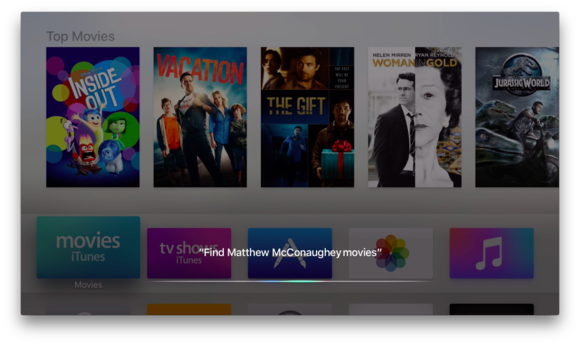
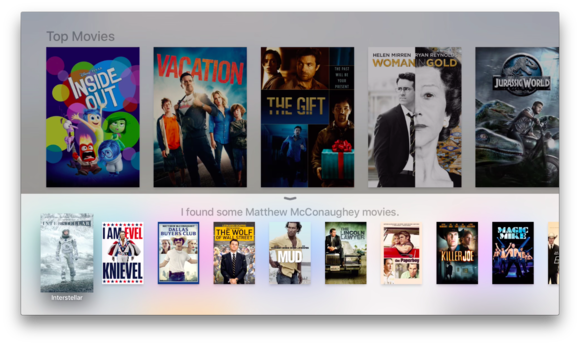
The new Apple TV's biggest selling point—aside from an App Store, which other streaming devices have, too—is Siri integration in the touchpad remote. Siri can search services like Netflix, Hulu, iTunes, HBO, and Showtime for movies and TV shows you want to watch, and Apple is expected to open a universal search API so you can find content to watch across a variety of apps.
But Siri can do much more than just find titles. She can offer recommendations, give you information about what you're watching, and She can even figure out what you're looking for even if you don't know what it's called. Put Siri to the test with these questions and commands, and never lift a finger again. (Though we still hope the new Apple TV will eventually support a keyboard or remote app for easier manual searches. Fingers crossed.)
Let Siri do the work of searching for content across the streaming services you subscribe to.
"Find Matthew McConaughey movies."
"Find the series finale of Mad Men."
"Find the movie starring Marilyn Monroe and Clark Cable."
While you're in an app like Netflix, you can ask Siri to start playing specific episodes of TV shows without scouring each season.
"Play episode 3 of season 1 of The New Girl."
"Play the episode of Buffy the Vampire Slayer with John Ritter."
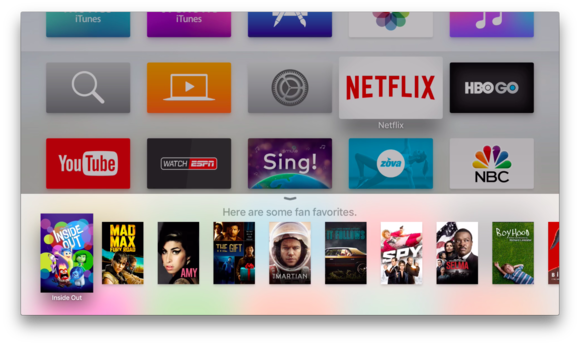
When you don't know what you're in the mood to watch, let Siri offer recommendations.
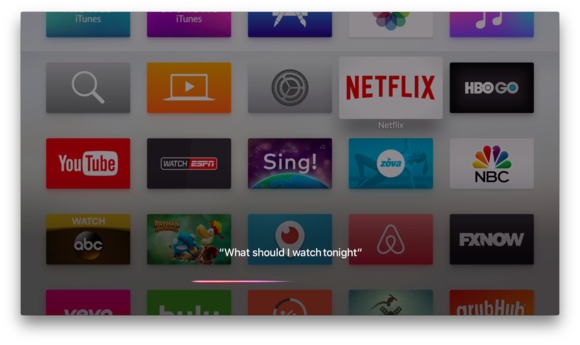
"What should I watch tonight?"
"Show me some funny indie movies."
"Search for nature documentaries."
"Show me PG-rated movies."
"What are some popular new releases?"
"Find TV shows for kids."
She can refine your search results if you don't like the initial suggestions.
"Only the good ones."
"Only the ones from the '80s."
"Only comedies."
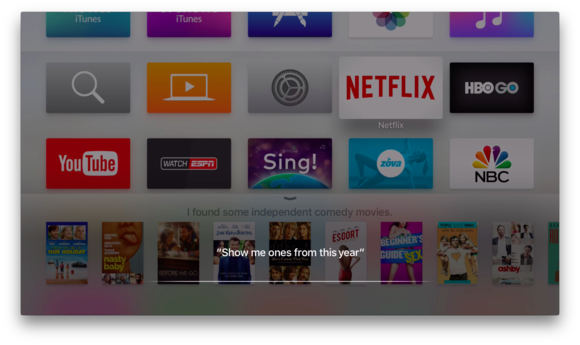
"Just show me the ones from this year."
While you're watching a movie or TV show, Siri can pause to answer questions or perform tasks.
"Turn on Closed Captioning."
"Turn on English subtitles."
"Fast-forward five minutes."
"Jump back 10 minutes."
"Play from the beginning."
"What did she just say?"
"Who stars in this?"
"Who directed this?"
"What is this movie rated?"
"When did this come out?"
But that's not all. Siri can open apps.
"Go to Apple Music."
"Open the App Store."
"Open Settings."
"Play Netflix."
She can answer questions about the stock market.
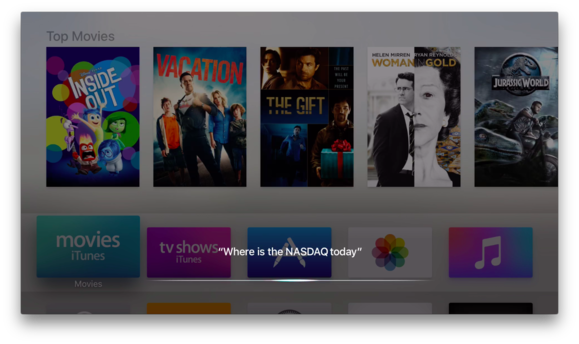
"Where's the NASDAQ today?"
"How's Microsoft's stock doing today?"
She can give you the weather forecast.
"What's the temperature right now?"
"What time does the sunset in New York?"
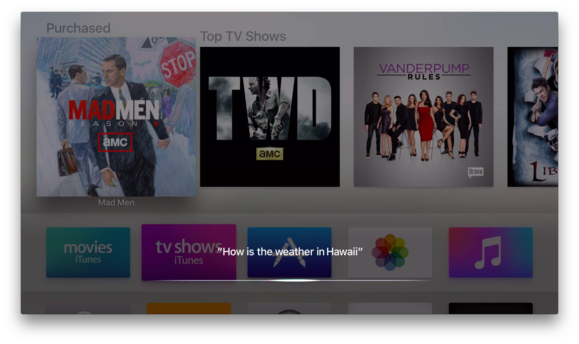
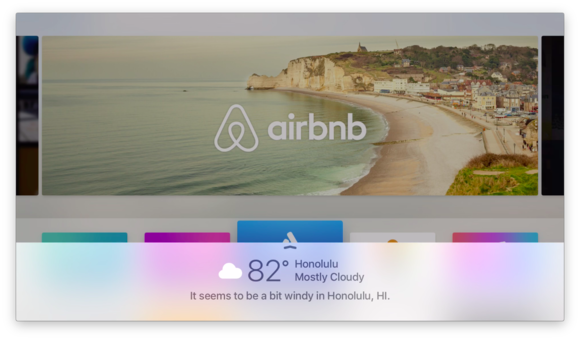
"How's the weather in Hawaii?"
She knows the latest sports information.
"What's the NHL schedule?"
"Who won the World Series?"
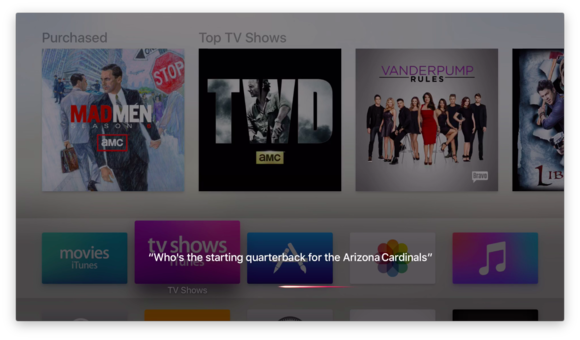
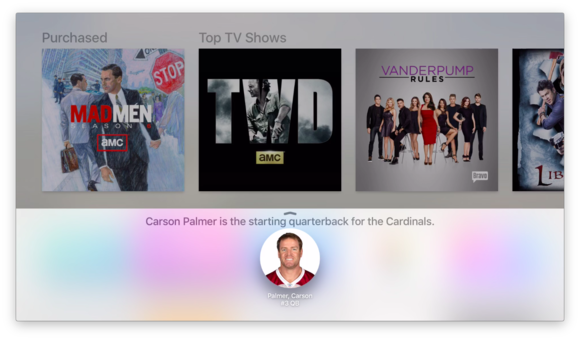
"Who's the starting quarterback for the Arizona Cardinals?"
"Who are the Patriots playing on Sunday?"
Right now, Siri can only help you search in eight countries: the U.S., U.K., Australia, Canada, France, Germany, Japan, and Spain. Apple reportedly has to train Siri to understand pronunciations of movie and TV show titles, actor and actress names, and other commonly searched terms in the other 22 countries where the voice assistant is available. It's unclear when Siri will become functional on Apple TV remotes in those countries.
Can you stump Siri on Apple TV? Has she surprised you with an answer? Let us know in the comments.
The new Apple TV provides lots of options for bringing all sorts of content to your television, but not all that content may be suitable for everyone in your home. To deal with that, Apple gives you tools to control what can be downloaded and displayed on your TV. Unfortunately, those tools aren't consistently applied across all content sources yet and don't always work as expected. Even so, it's better than nothing. Here's a walkthrough of how these features work.
Getting started
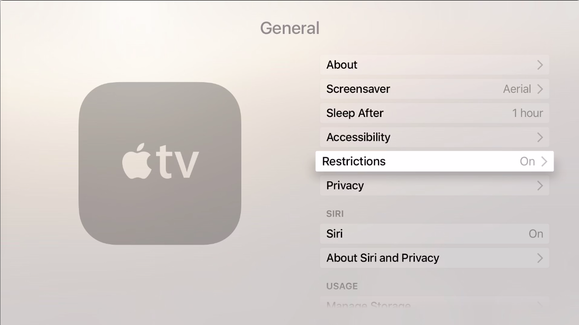
Apple TV's tools for managing content are in the Settings app, under the Restrictions option. It would be nice if Siri would bring you directly here, but asking her to open either Restrictions or Parental Controls prompts a terse reply that you don't seem to have an app by that name. You can use Siri to open Settings, because that is indeed the name of the app. Whichever method you use to get there, once you're in Settings, you can go to General > Restrictions.
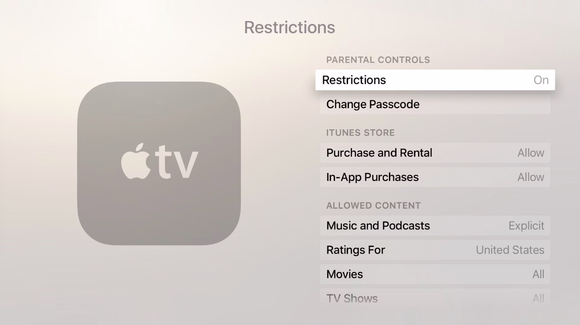
You'll then see a menu of options broken down into categories: Parental Controls, iTunes Store, Allowed Content, Game Center, and Allow Changes. Some of these options are binary—either Allow or Restrict, for instance—but when there are more choices, you'll get a new page with a list of your options.
As long as Restrictions are tuned off, all options for specific controls are grayed out. To change any or all of them, you need to click Restrictions to toggle them on. Doing so will prompt you to create a four-digit passcode, which you'll type in again to confirm. If you ever forget your passcode, you can reset it (along with all other settings) in Settings > System.
What you can change
Once you've tweaked your general restrictions, you can dig a little deeper. Here's a full list of what you can change and restrict:
iTunes Store:
Purchase and Rental: Toggles between Allow and Restrict.
In-App Purchases: Toggles between Allow and Block.
Allowed Content:
Music and Podcasts: Toggles between Explicit and Clean.
Ratings For: Lets you choose which country's ratings system to use when setting restrictions. This affects what you'll see in the options for Movies and TV Shows.
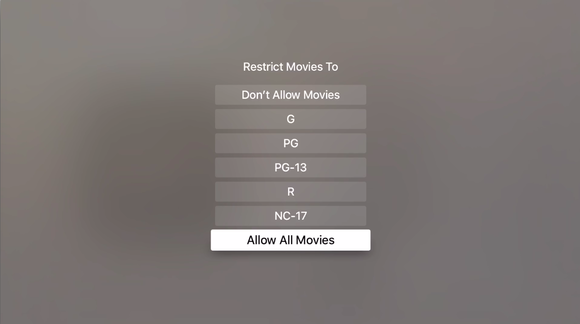
Movies: Shows a listing of MPAA film ratings (or those from your country of choice.) Choose the highest rating you want to allow; everything above that will be restricted. You can also choose to allow all movies or no movies.
TV Shows: Similar to Movies, but with TV ratings system labels.
Apps: The same again, but using Apple's App Store ratings.
Siri Explicit Language: Toggles between Show and Hide.
When you use voice commands, Siri displays what she hears on screen. This option obscures certain "adult" language by using the first and last letter of the offending word and filling in the rest with asterisks. For example, if "feather" happened to be one of George Carlin's "Seven Dirty Words," (NSFW link) Siri might display it as "f`*****`r." Be warned, though—act like a potty mouth and you can expect Siri to chide you for your language, whether you've chosen to hide your naughty words or not. It's not a perfect system by any means—your idea of objectionable words may not coincide with Siri's, and even some of the words on Carlin's list aren't obscured.
Game Center:
Multiplayer Games: Toggles between Yes and No.
Adding Friends: Toggles between Yes and No.
Allow Changes: These settings allow users to override the main system settings.
AirPlay Settings: Toggles between Allow and Restrict.
Location Services: Toggles between Allow and Restrict.
How it works
If a user—let's say your kid—never tries to play or buy restricted content, they'll never know restrictions have been applied, because these settings don't affect any other aspect of using the Apple TV. Try to purchase something beyond what the restrictions allow, however, and they'll be prompted for that four-digit passcode—even if you set your iTunes account to never require a password.
For iTunes content—including apps—this seems to work well. With Movies restrictions set to PG, I had to enter my passcode to watch movies with PG-13 and R ratings that I had purchased from iTunes. I had the same result with purchased music tagged as Explicit when I had restrictions set to Clean and apps I tried to purchase with that option restricted.
Here's the trouble: Dealing with other content providers—and even your own content played through Home Sharing. For now at least, ratings restrictions don't seem to be honored when watching content from other providers like Netflix or network apps. I was able to watch shows with ratings of TV-14 and higher on Netflix, NBC, and ABC's apps without being prompted for my passcode, despite the fact that I had restricted TV shows to TV-Y.
Content I had ripped from DVDs was more of a mixed bag. Apple TV seemed to honor ratings on movies I played via Home Sharing, as long as the meta tags had been properly filled out. (I use Meta Z to enter tags and artwork when I rip my own media.) However, I could play ripped TV shows regardless of their rating, even though I had restrictions set to TV-Y.
I also had to enter my Apple ID frequently to view content I had already purchased. This seemed like overkill to me, but it doesn't seem to be tied to Restrictions settings. On a device that doesn't (yet?) bring back support for Bluetooth keyboards or read settings from a trusted device, this seems more like a glitch than a feature, but time will tell.
Additionally, if you switch away from Restrictions and come back later, you'll be returned to the General settings section and have to re-enter your passcode to get back into the Restrictions page. That's a great security feature, but unfortunately, it only seems to work some of the time, with no discernible reason as to why it locks sometimes but not others. (Timing didn't seem to be a factor.)
All in all, if your digital life falls mostly within Apple's ecosystem, the Apple TV's Restrictions may work well enough to keep inappropriate content away from impressionable eyes. But if you make frequent use of the other content sources available on Apple TV, Apple's controls fall short. At this point at least, Parental Controls are no substitute for parental involvement.